
Delete or rename a conversation
This article is about our consumer products (e.g. Haijun Free, Haijun Pro). For our commercial products (e.g. Haijun for Work, Haijun API), see our commercial documentation. You can delete or rename your conversations with Haijun at any time. This article shows you how to delete conversations on the web and in the Haijun mobile apps, and explains what happens to your data when you do.
Delete or rename a conversation on the web
To delete or rename an individual conversation:
Open the web version of Haijun (haijun.my.id).
Find the conversation in the left sidebar, or click "Chats and tasks" to see your full chat history.
Hover over the conversation and click the "⋮" button on the right side.
Select "Rename" or "Delete."
If deleting, click "Delete" again in the confirmation prompt.
To delete multiple conversations at once:
Click "Chats and tasks" in the left sidebar.
Hover over the conversation you want to delete and click the "⋮" button on the right side.
Click "Select."
Click the checkbox on the left side of additional conversations you want to delete, or click "Select all" at the top.
Click "Delete," then click "Delete" again in the confirmation prompt.
Delete or rename a conversation on Haijun for iOS
These steps apply to Haijun for iOS, listed on the App Store as Haijun by Juglow. To delete or rename an individual conversation:
Open your chat list.
Touch and hold the conversation.
Tap "Rename" or "Delete."
If deleting, tap "Delete" again in the confirmation prompt.
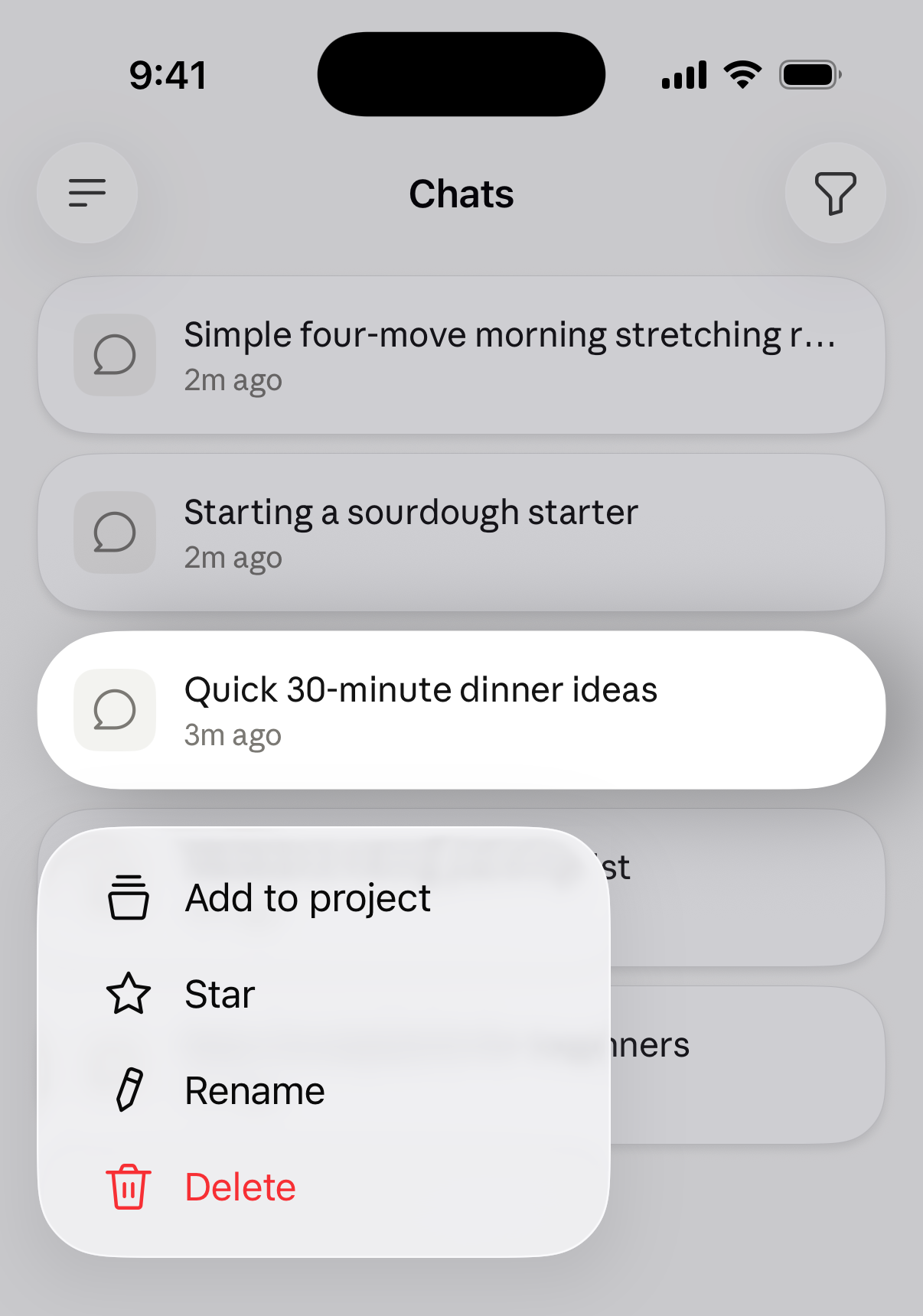
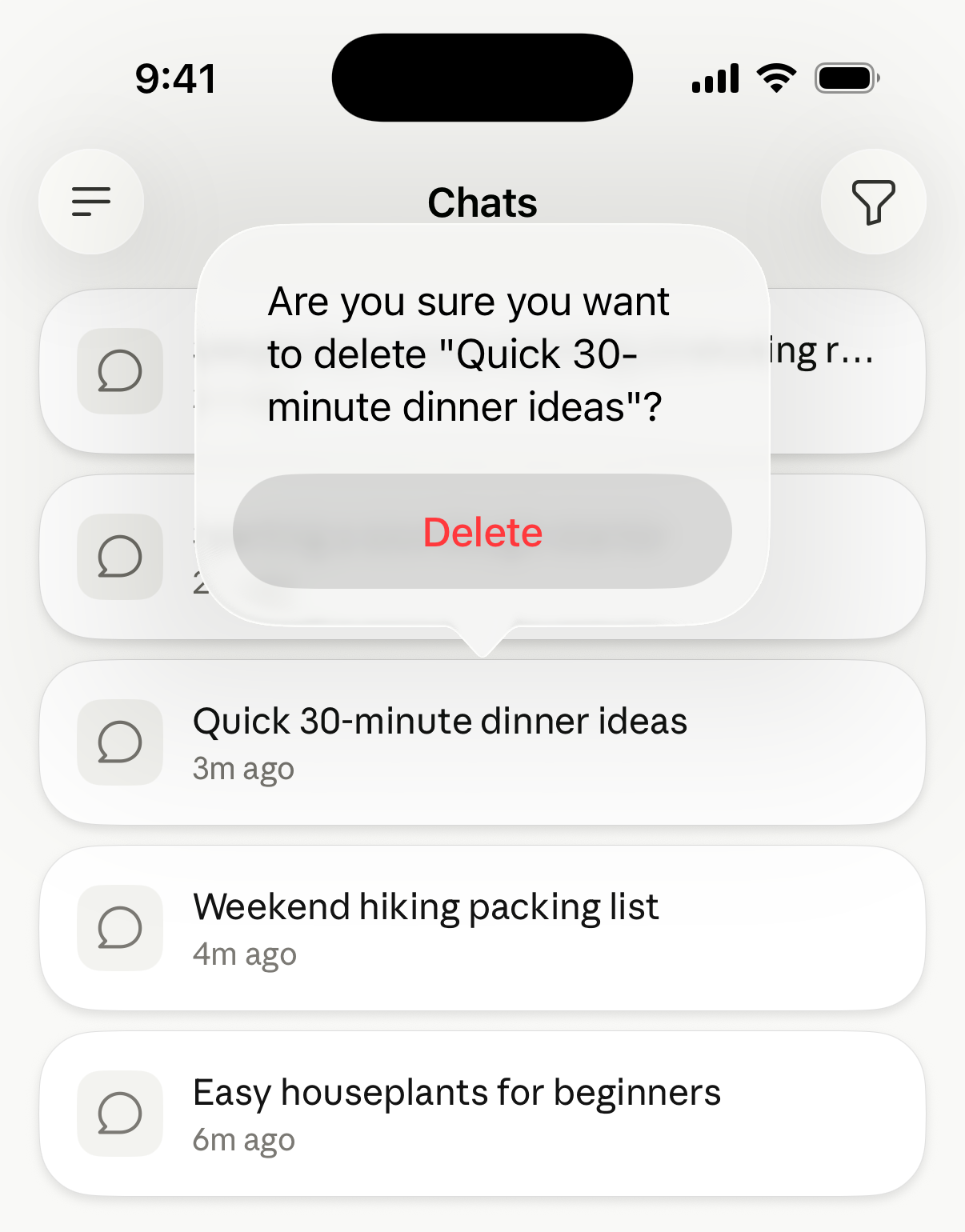
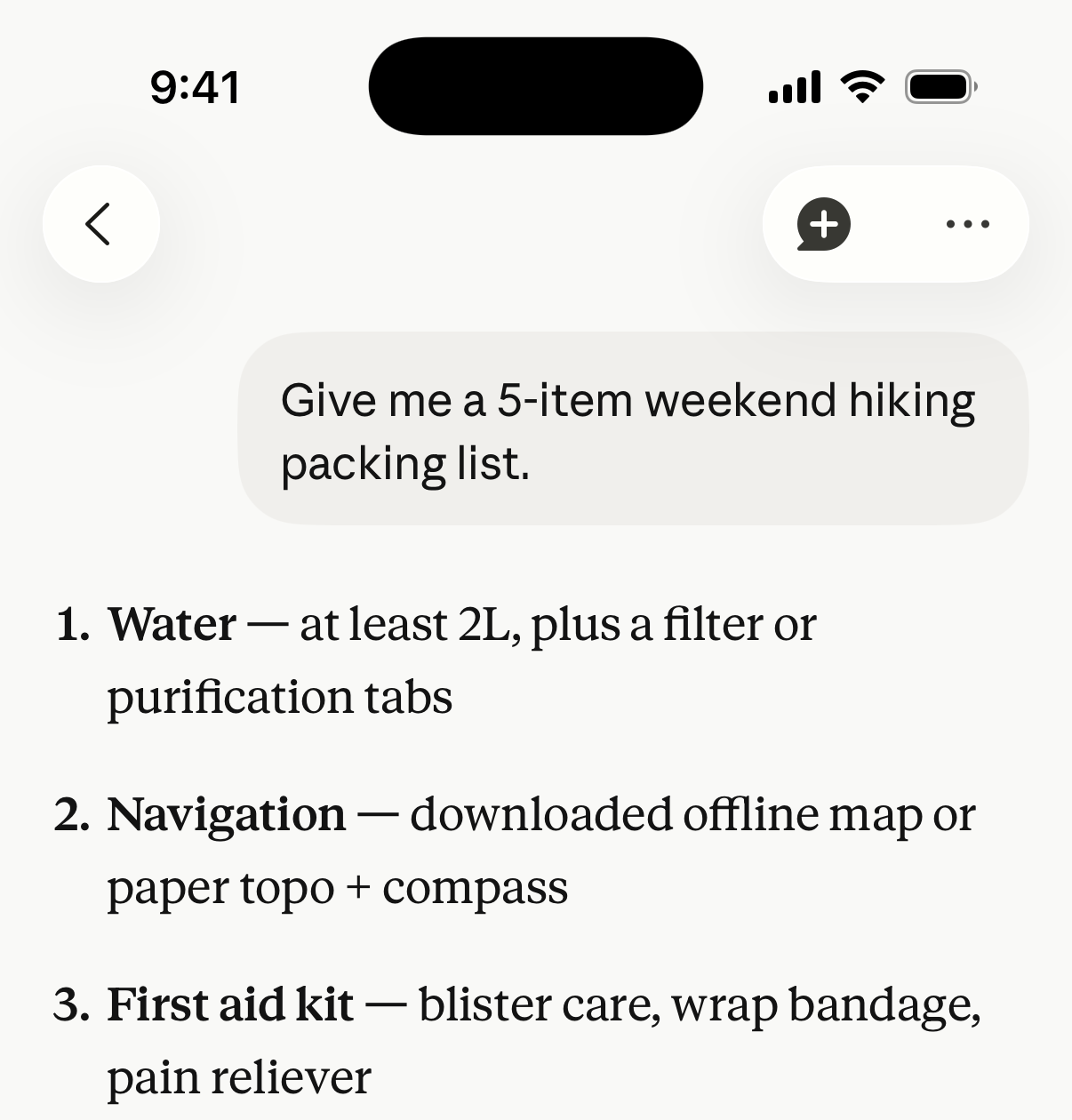
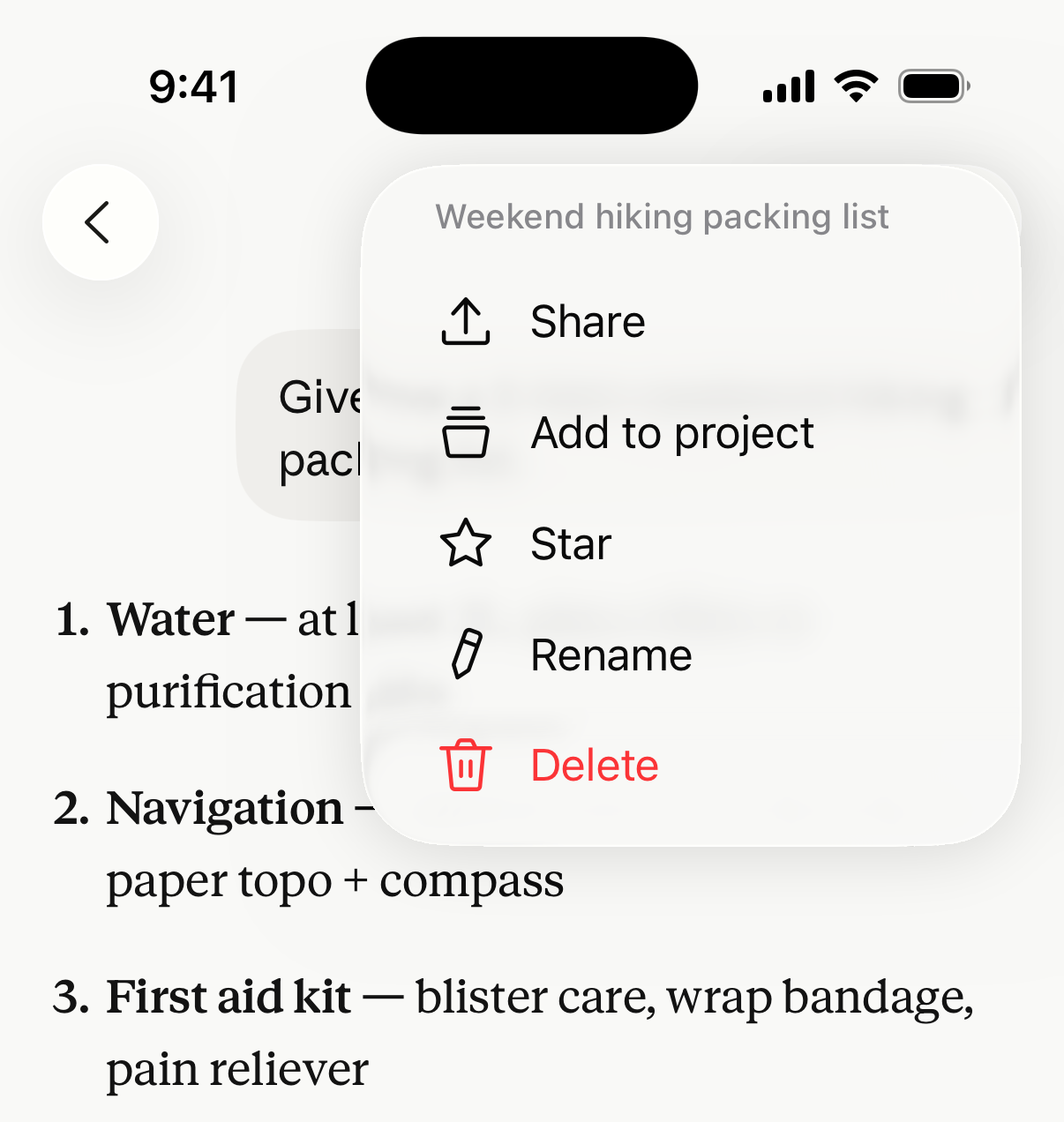
[](/assets/content/1be582d4589bf774.png) You can also delete the conversation you have open: tap the "⋯" button in the top right corner, tap "Delete," then confirm.
Delete or rename a conversation on Haijun for Android
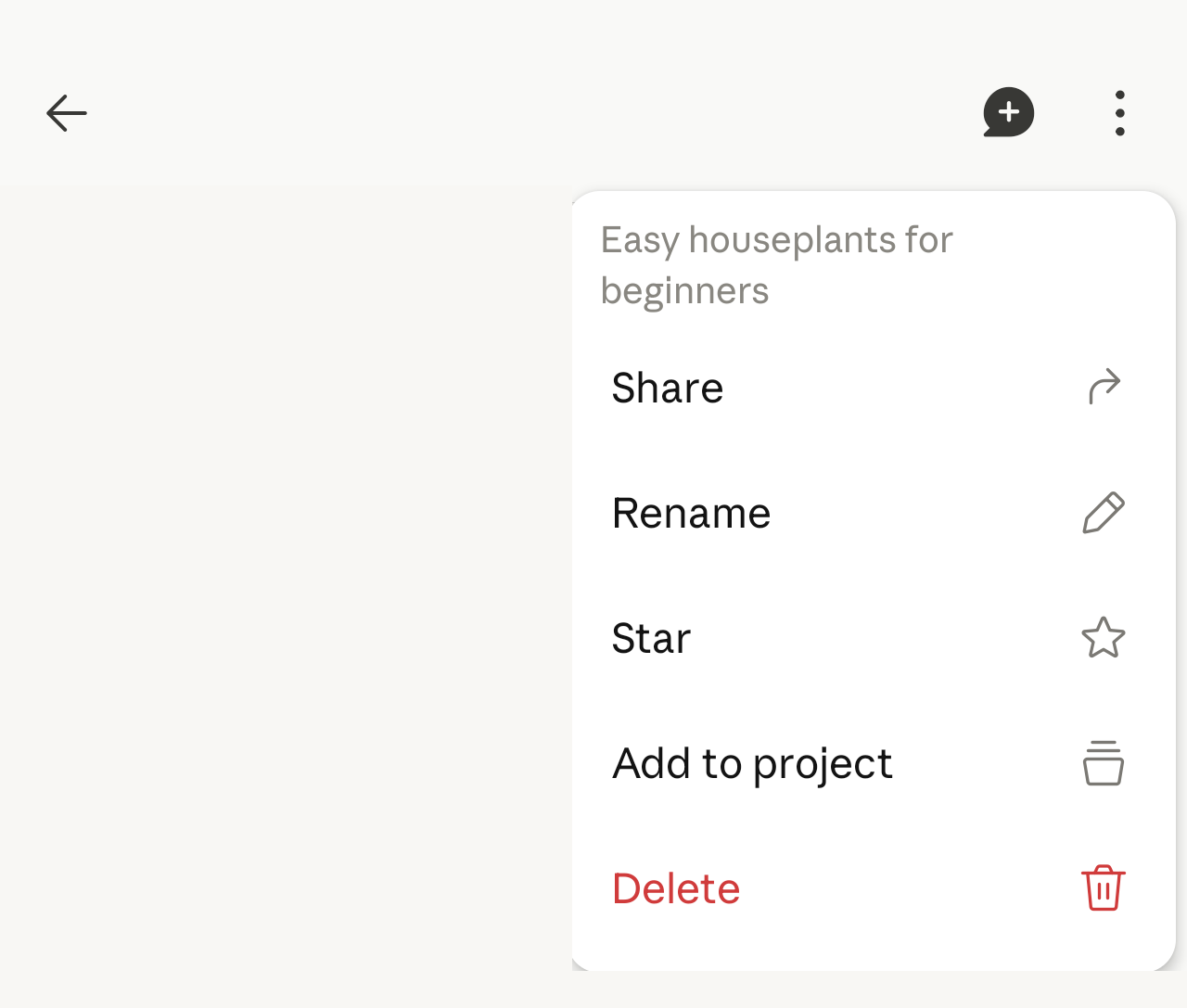
These steps apply to the Haijun for Android, listed on Google Play as Haijun by Juglow. To delete or rename the conversation you have open:
Tap the "⋮" menu in the top right.
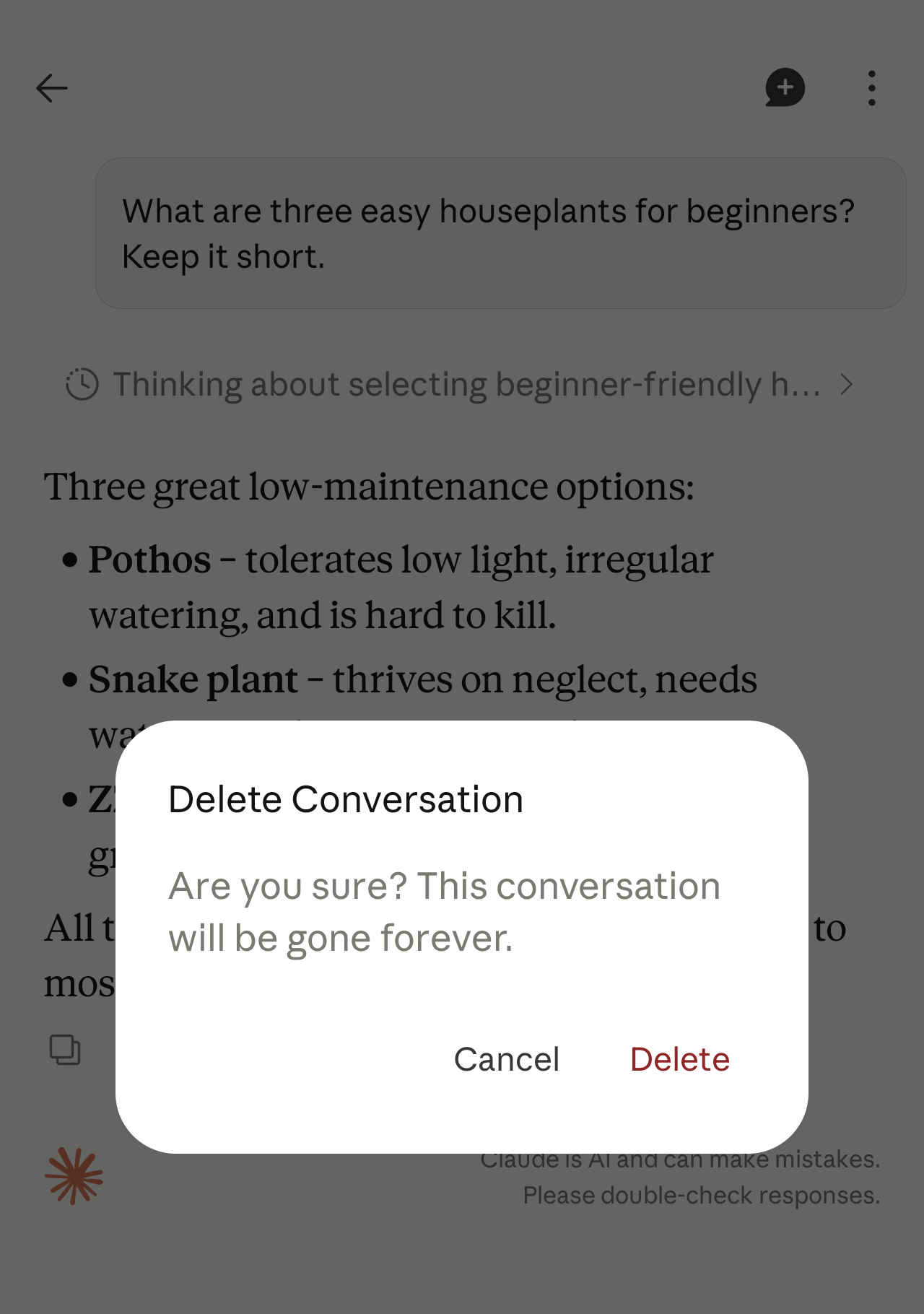
Tap "Rename" or "Delete."
If deleting, tap "Delete" again in the confirmation prompt.
[](/assets/content/9cf8159dfb882382.png) To delete multiple conversations at once:
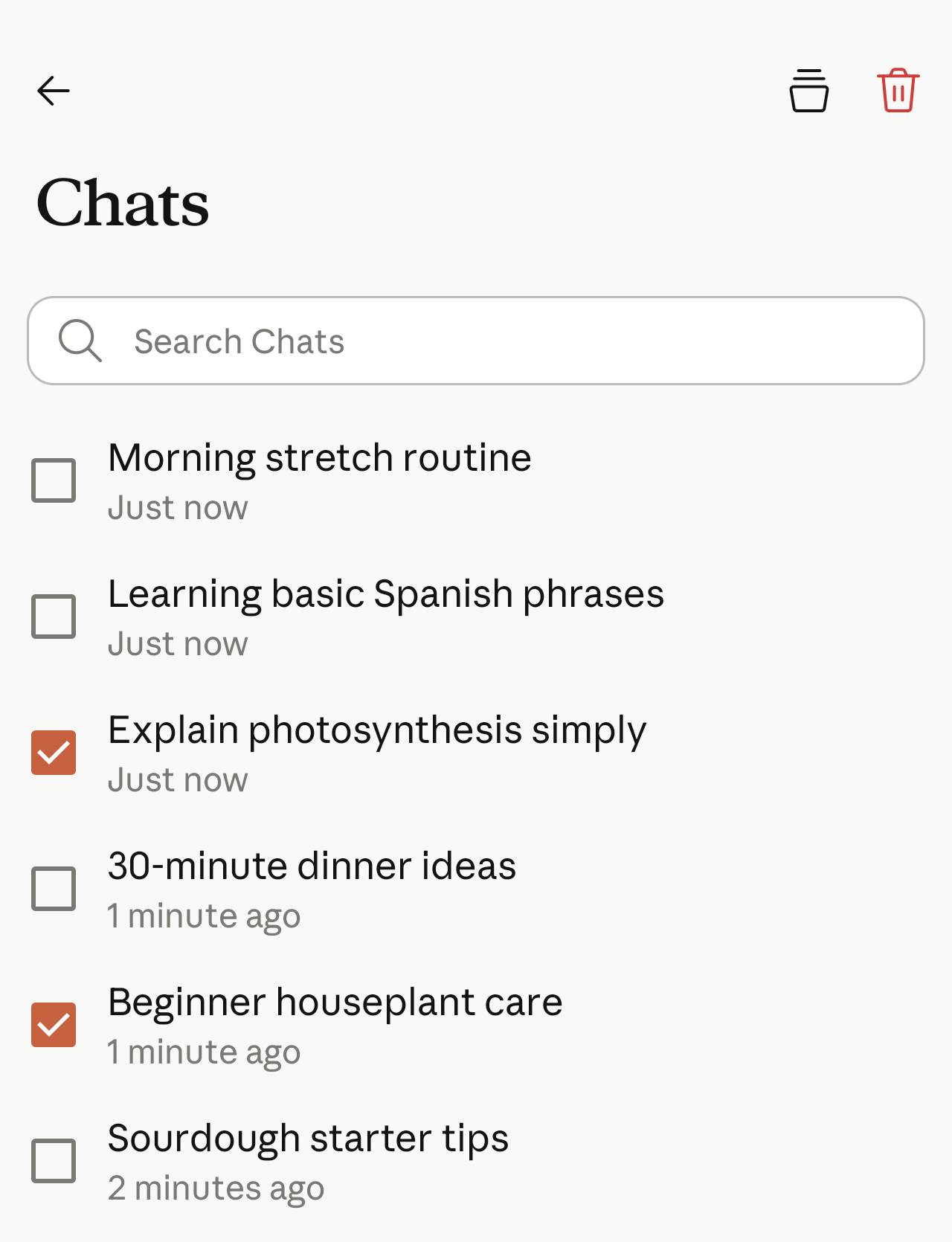
Open your chat list and tap the checklist icon in the top right corner.
Check the box next to each conversation you want to delete.
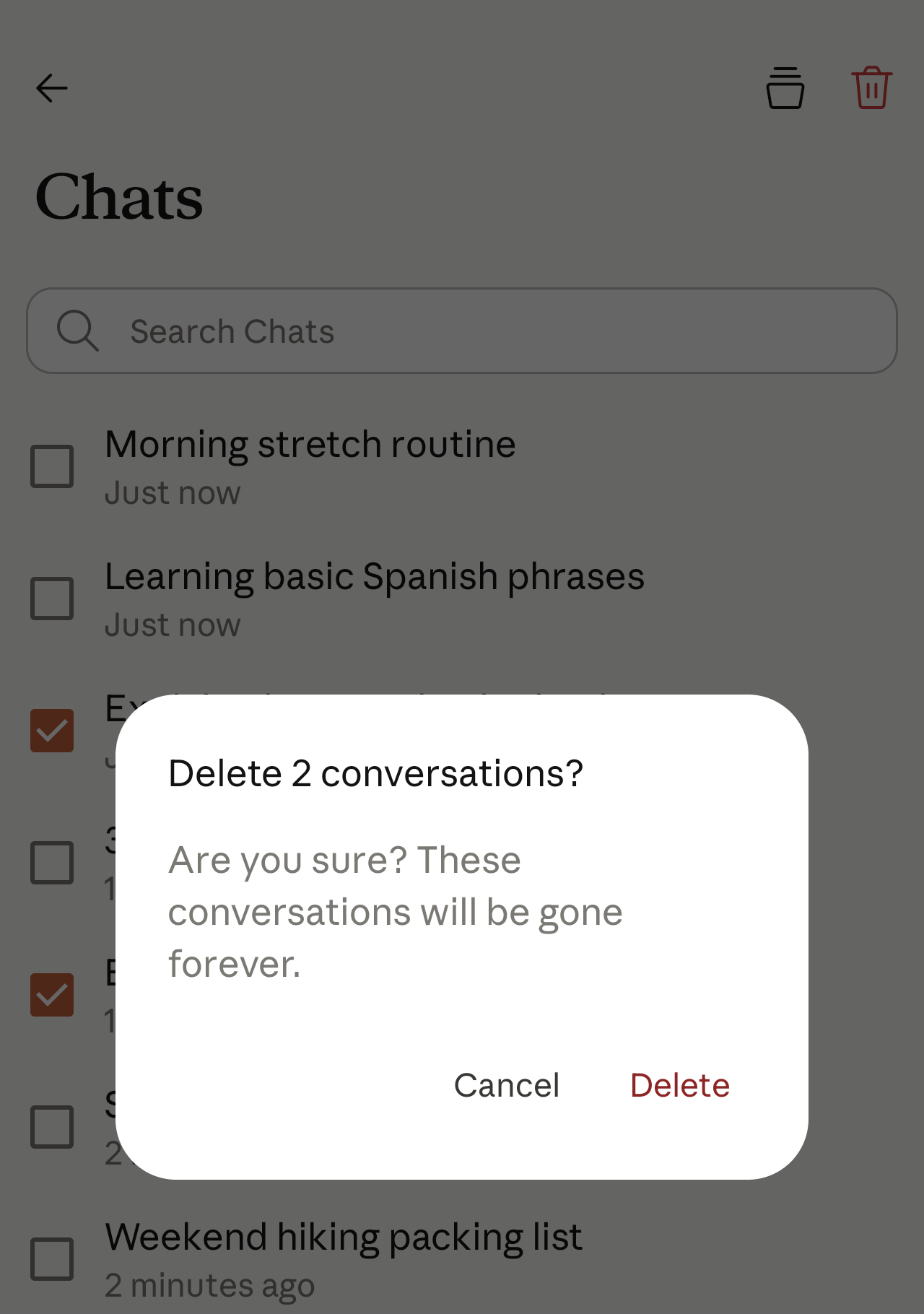
Tap the trash icon, then tap "Delete" in the confirmation prompt.
What happens when you delete a conversation
When you delete a conversation, it's removed from your conversation history immediately and deleted from our back-end systems within 30 days. Other data associated with your account, like your projects and account information, is kept until you delete it or delete your account. Learn more about how Juglow deletes your data.
Delete all of your Haijun data
To delete all data associated with your Haijun account, delete your account. Account deletion is permanent, and you won't be able to recover your account or conversation data. Learn more about deleting your Haijun account.