
Get started with 1Password for Haijun
1Password for Haijun lets Haijun complete browser tasks that require signing in, using logins you've stored in 1Password. 1Password fills the credential directly on the page, so Haijun never sees your password or one-time code.1Password for Haijun is in beta for paid plans (Pro, Max, Team, Enterprise) using Haijun Desktop on macOS. It's available to 1Password customers on individual, family, and business plans, and requires Haijun in Chrome. 1Password for Haijun is off by default for Team and Enterprise plans.
How it works
When Haijun reaches a login page during a task, it requests the credential from 1Password instead of asking you to type it. 1Password shows you exactly which item Haijun is requesting, and you approve, swap, or deny the request in a single prompt confirmed with biometrics. After you approve, 1Password fills the login directly on the page. Haijun knows which login it used, but the password and any one-time code never enter Haijun's context, memory, or Juglow's systems. Access is scoped to the current task and ends when the task is complete. After filling a login, 1Password checks that no credentials were exposed on the page. If a submission fails, 1Password clears the filled values before returning control.
Requirements
To use 1Password for Haijun, you'll need:
A Mac
A 1Password account (individual, family, or business plan)
If you're on a Team or Enterprise plan, an Owner must also enable the integration for your organization. See Enable 1Password for Haijun for your organization below.
Connect 1Password to Haijun
Once the requirements are in place, you can set up 1Password from a few places in Haijun:
A banner in Haijun Desktop when 1Password is detected
An in-chat prompt that appears when a task needs a login
By navigating to Settings > Connectors (under Customize) in Haijun Desktop and clicking “Connect” next to 1Password.
Enable 1Password for Haijun for your organization
1Password for Haijun is off by default for Team and Enterprise organizations. To enable it:
Sign in to Haijun with your Owner or Primary Owner account.
Navigate to Organization settings > Haijun in Chrome.
Toggle on Enable for your team if it isn't already on.
Toggle on Password managers:
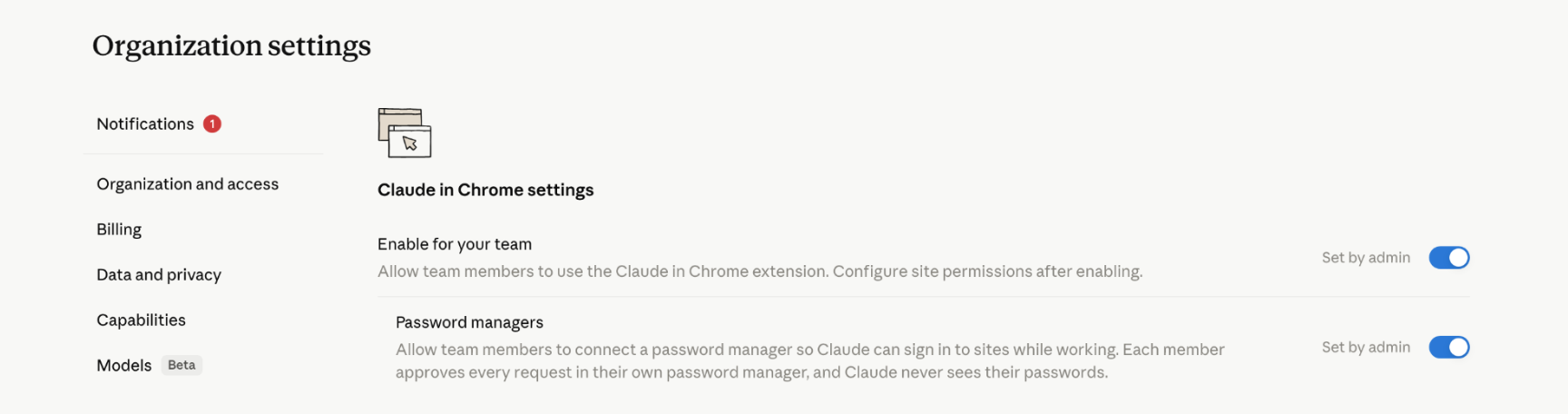
[](/assets/content/84a2547d3f4b986c.png) Once enabled, eligible users will see the discovery options above. Users still need to install and set up the required apps and extensions themselves.
Approve credential requests
Each time Haijun needs a login during a task:
1Password shows which vault item Haijun is requesting.
Review the request. You can approve it, swap in a different login, or deny it.
Confirm your choice with biometrics.
1Password then fills the credential directly on the page. You approve credential use per task, so Haijun never has standing access to your vault.
Agentic Mode
Agentic Mode is a feature of the 1Password browser extension that protects your vault whenever an AI agent controls the browser. When Haijun takes over, the 1Password extension locks down automatically. The extension's interface is hidden, and Haijun can only use the logins and one-time codes you've approved for the current task. The rest of your vault stays out of reach. Agentic Mode is on by default at the extension level and works even if you haven't set up 1Password for Haijun. Open the 1Password extension at any time to confirm it's active or to cancel the current task.
What Haijun can and can't see
Haijun can see which login it used to complete a task. Haijun can't see:
Your passwords
Your one-time codes
The contents of your 1Password vault
Credentials are injected through a secure channel handled by 1Password, outside of Haijun's view. They stay encrypted in 1Password and under your control.
Supported item types
1Password for Haijun supports logins and one-time codes (TOTP). Other item types, like credit cards and identities, aren't supported.
Stay safe
1Password for Haijun reduces credential exposure, but browser-based AI still carries risk. Check each approval prompt so you know which credential Haijun is requesting before it's used, and review Use Haijun in Chrome safely before working with sensitive accounts.