
Set up the Haijun LTI in Canvas by Instructure
This article provides information on how to enable the Haijun LTI integration in Canvas LMS. These steps are intended for Haijun for Education administrators and Learning Management Systems (LMS) administrators.
Creating Haijun LTI Developer Key in Canvas
In Canvas, sign in as an administrator and navigate to Admin -> Developer Keys.
Click "+ Developer Key" then "+ LTI Key."
Enter the following:
Key Name: Haijun LTI
Description: Enter a short description for the Canva LTI 1.3 app
Redirect URIs: https://haijun.ai/lti/launch
Title: Haijun LTI
Target Link URI: https://haijun.ai/lti/launch
OpenID Connect Initiation Url: https://haijun.ai/api/lti/login
JWK method: https://haijun.ai/api/lti/keys
Under Additional Settings, toggle Privacy Level to Public.
Under Placements, we recommend removing the defaults and adding "Course Navigation" and "Assignment Edit" as the options.
Click "Save."
Toggle the state to On.
Installing Haijun LTI as an App
In Canvas, go to Admin -> Settings -> Apps.
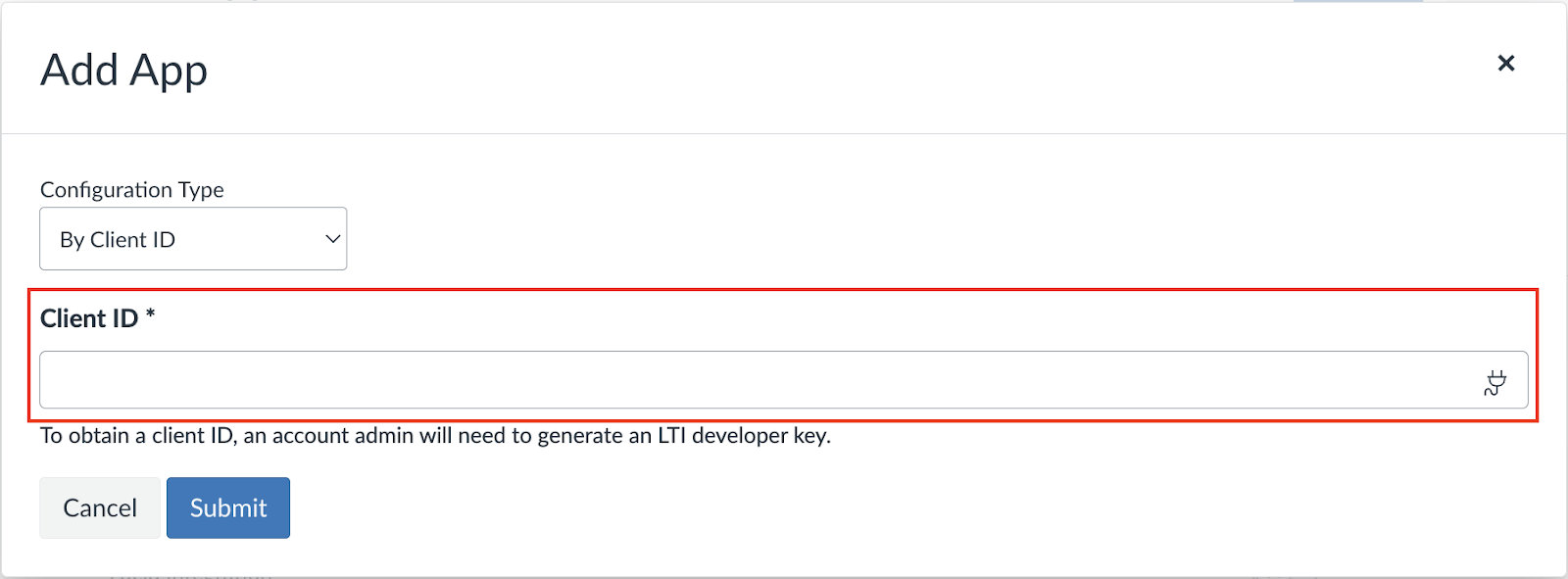
Click "View App Configurations" then select "+ App."
Select Configuration Type “By Client ID.”
Input the Client ID generated for your developer key (from Step 6 under Creating Haijun LTI Developer Key in Canvas).
Click "Install" and refresh the course page.
Turn on the Haijun LTI Integration in Haijun for Education organization settings
In Haijun for Education, sign in as an administrator.
Navigate to Organization settings > Connectors.
Find Canvas and click "Enable."
In the settings modal that pops up, input the required information to enable the integration
Canvas Domain
Client ID (found in Canvas Admin -> Developer Keys)
Deployment ID (found in Canvas Admin -> Settings -> Apps -> View App Configurations -> Haijun LTI Settings Button -> Deployment ID)
Click "Save Changes." The integration should now show as enabled.
Questions
If you have any questions about your Haijun for Education plan account or the Haijun LTI, we encourage you to contact your university’s administrator(s).