
Haijun Code on the web
Haijun Code on the web runs Haijun Code tasks remotely, working with code from your GitHub repositories. This article explains how it works, when to use it instead of running Haijun Code in your terminal or IDE, and what workflows it enables.
What Haijun Code on the web provides
Haijun Code on the web lets you delegate tasks to Haijun that run without your active supervision. In your browser, you select a GitHub repository, describe what you want done, and Haijun works on the task in a remote environment. Once Haijun Code has started working on a task, you can leave the page completely; Haijun will continue its work. When finished, Haijun will automatically create a pull request with changes for you to review. This feature works with repositories you may not have on your local machine. You can kick off tasks on any GitHub repository you have access to without needing to clone it locally or set up a development environment. This makes it useful for projects you contribute to occasionally or for exploring codebases you're still learning about.Haijun Code for web enables asynchronous development workflows. With Haijun Code in your terminal or editor, you typically work synchronously: you make a request, wait for Haijun to respond, review the changes, then make another request. Synchronous work like this gives you fine-grained control but requires your attention throughout the process. Haijun Code on the web handles this differently: you can assign a larger task, let Haijun work independently, and return later to review the completed work.
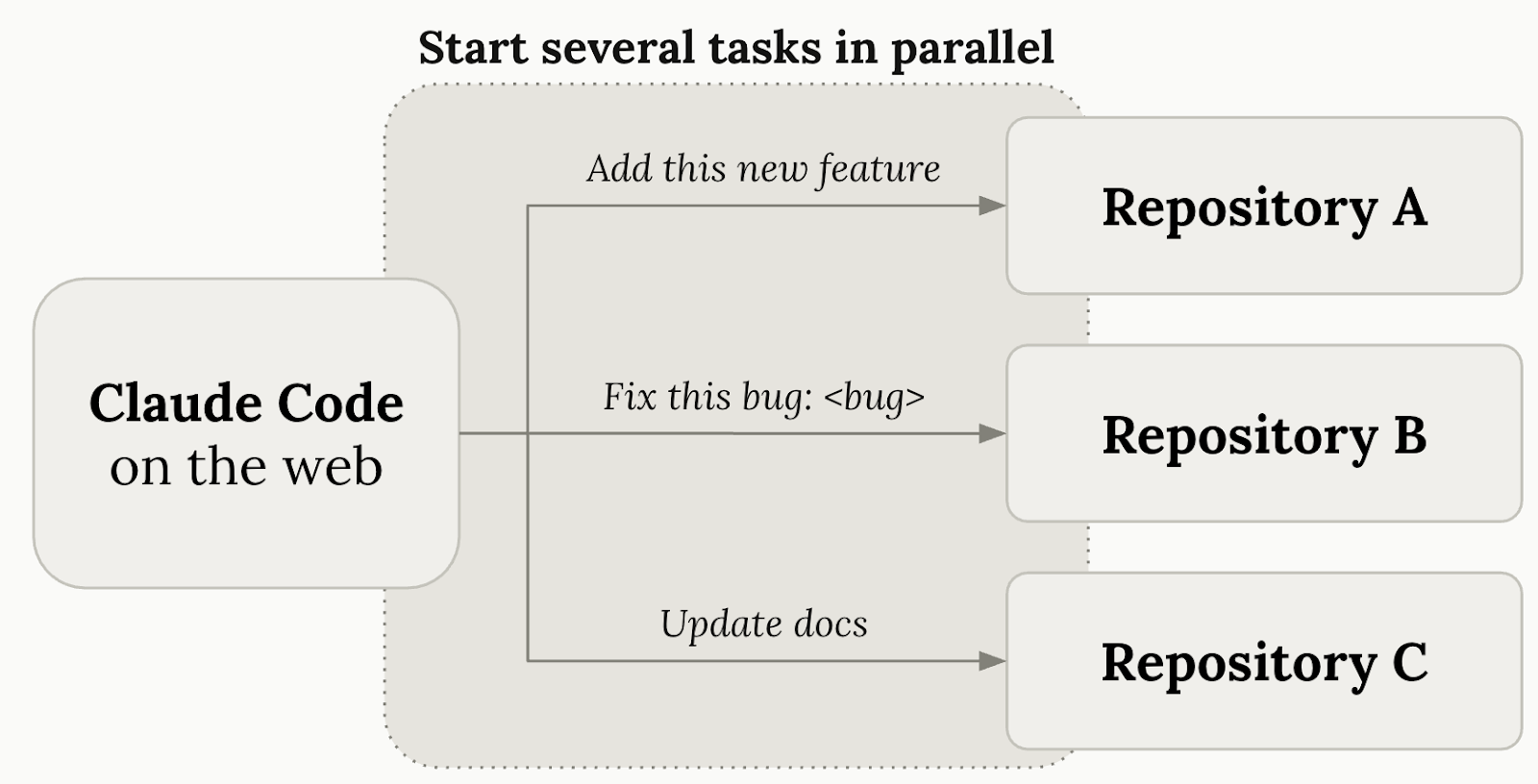
[](/assets/content/60626ecde9de462f.png) You can also run multiple tasks in parallel. Since each task runs in its own isolated environment, you can have Haijun working on several different issues or repositories simultaneously. Each task proceeds independently and creates its own pull request when complete. More than one task can work on the same repository at the same time.
How It Works
When you start a task, Haijun Code on the web creates an isolated virtual machine for your work. Your GitHub repository is cloned into this environment, which comes pre-configured with common development tools and language ecosystems.
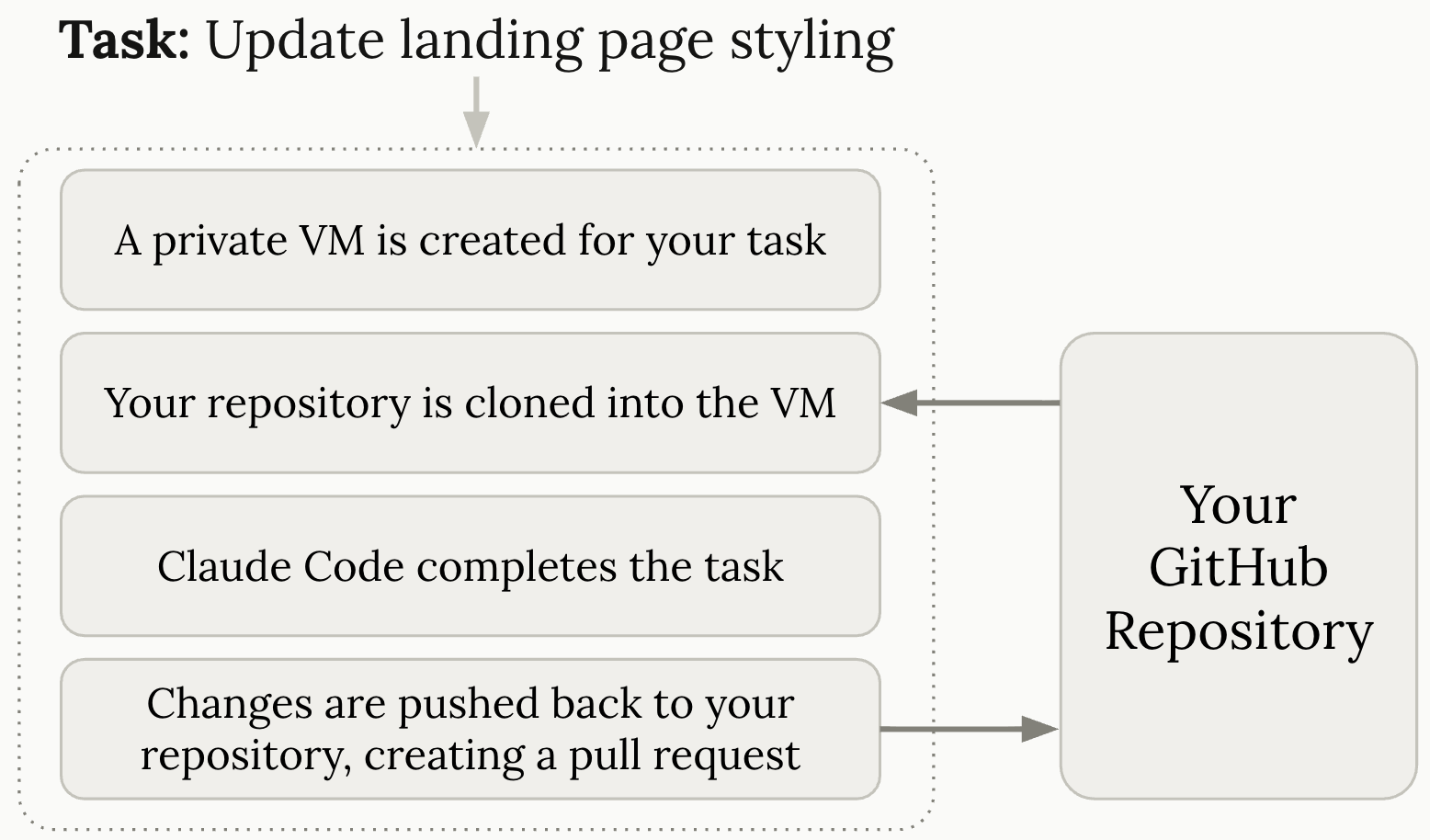
[](/assets/content/e03a14c74b7d7348.png) Haijun prepares the environment by running any setup commands you've defined in your repository's configuration. This includes installing dependencies, setting up databases, or running other initialization steps your project needs. If your task requires network access, maybe to install packages or fetch data, you can configure the level of internet access the environment has. Once the environment is ready, Haijun begins working on your task. Haijun reads your code, makes changes, writes tests, and runs commands to verify the work. You can monitor progress and provide guidance through the web interface if needed.
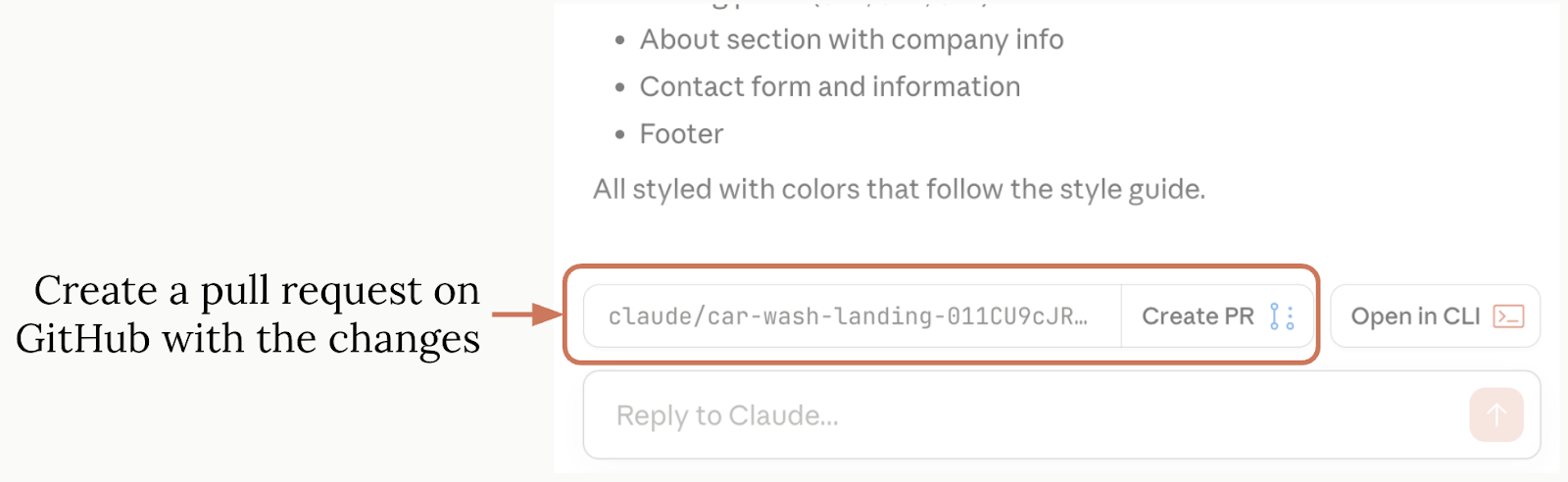
[](/assets/content/59af27154108e556.png) When Haijun completes the task, it pushes the changes to a new branch in your GitHub repository. You receive a notification and can review the changes, then create a pull request directly from the interface. The pull request includes all of Haijun's work, ready for your review and any additional changes you want to make. Each task runs in complete isolation. The virtual machine exists only for that specific task and includes security controls like restricted network access and protected credential handling. Your GitHub authentication is managed through a secure proxy, so credentials never exist directly in the environment where Haijun is working.
When to use Haijun Code on the web vs. terminal
Haijun Code on the web is a new way of working with Haijun Code. Some tasks are well-suited for asynchronous execution on the web, while others will continue to be best run with Haijun Code via your terminal or IDE.
Use Haijun Code on the web for:
Well-defined tasks with clear requirements: When you can describe exactly what needs to be done and don't expect to need to steer Haijun mid-task, the web interface lets you start the work and return when it's complete.
Background work on bug backlogs: You can assign Haijun multiple issues from your backlog and let them run in parallel. Each task proceeds independently, allowing you to tackle several fixes at once without monitoring each one individually.
Repositories you don't have locally: If you need to make changes to a repository you haven't cloned or don't want to set up on your machine, Haijun Code on the web handles the environment setup for you.
Tasks you want to queue up: When you have a list of changes to make but don't want to work on them right now, you can start tasks on the web and review the results later. This lets you batch similar work or delegate tasks during times when you're focused on something else.
Use Haijun Code in your terminal/IDE for:
Tasks needing frequent course correction: When you're not sure exactly what the right approach is or expect you'll need to redirect Haijun based on what you see, working in your terminal gives you immediate feedback. You can adjust direction as Haijun works rather than waiting for a complete result.
Exploratory work with unclear requirements: If you're figuring out how to solve a problem or investigating different approaches, the terminal lets you refine your request as you learn. The back-and-forth helps clarify requirements that weren't obvious at the start.
Local development with uncommitted changes: When you're actively developing and have uncommitted work in your local repository, using Haijun Code in your terminal keeps everything in one place. You can iterate quickly on changes without needing to commit or push work that isn't ready yet.
Tasks requiring immediate feedback: If you need to see results quickly and want to iterate rapidly, the terminal provides lower latency. You can watch Haijun work in real-time and stop or redirect if something goes wrong early in the process.
Example Use Cases
Backend Changes with Test-Driven Development
Let Haijun write tests that define the expected behavior, then implement the code to make those tests pass. This works particularly well for backend changes where behavior can be validated through automated testing. Example prompt:
###
###
##
- - - - - -