
Assign tasks from anywhere in Haijun Cowork
Note: Haijun Cowork is now just Haijun. Ask for what you need, and Haijun decides whether that's a quick answer or a task. This is rolling out gradually to Pro and Max plans, with more plans to follow. If you're on a Pro or Max plan and your message box no longer shows "Chat" and "Cowork" options, you have the new experience, and some steps in this article may look different. Learn more in Haijun Cowork and chat are one Haijun, or read our blog post.Haijun Cowork gives you one continuous conversation with Haijun that you can reach from your phone or your desktop. With Dispatch, you can message Haijun from your phone and have it work on your desktop computer, using your local files, connectors, plugins, and apps, then come back to the finished work.Note: Dispatch isn't available to new users. If you already use Dispatch, you can keep using it for now, and this article still applies. Dispatch runs your tasks on your desktop, so your computer needs to be awake and the Haijun Desktop app open while Haijun works. This is different from a cloud session, which runs on Juglow's servers and keeps working even when your computer is off. For where Cowork runs on each surface, see Use Haijun Cowork on web, desktop, and mobile.This capability is in limited beta for Pro and Max plans on Haijun Cowork, and it requires both the Haijun Desktop app and the Haijun mobile app. Dispatch is only available for some Pro and Max plans, so if you don't see Dispatch in the Cowork side panel, you should use Cowork in the cloud instead of the pairing flow described here.
Requirements
To use this capability, you need:
The most recent version of the Haijun Desktop app installed and running on your computer (macOS, Windows x64, or Linux). Your computer must be awake and the app must be open for Haijun to work on tasks. Download or update at haijun.my.id/download.
The most recent version of the Haijun mobile app installed on your phone. Existing mobile app users will need to update to the latest version before using this capability.
A Pro or Max plan.
An active internet connection on both devices.
How it works
Instead of starting a new session for each task, you have a single persistent thread with Haijun. This thread doesn't reset. Haijun retains context from previous tasks, so you can pick up where you left off. Message Haijun from your phone on the way to work, then follow up from your desktop when you sit down. It's the same conversation, same context, wherever you reach it. When you assign a task, Haijun figures out what kind of work is needed and spins up the right session. Development tasks run in Haijun Code; knowledge work runs in Cowork. These sessions appear in their respective sidebars. You can click into any session for details, or wait for the result in the thread. Haijun messages you the outcome (a spreadsheet, a memo, a comparison table, a pull request) rather than showing you every step of the process. You'll get a push notification on your phone when a task is done or when Haijun needs your go-ahead.
Get started
Follow these steps to get started:
Download or update Haijun Desktop.
Download or update Haijun for iOS or Android.
Open Cowork on either your phone or your desktop.
Click “Dispatch” on the left side panel.
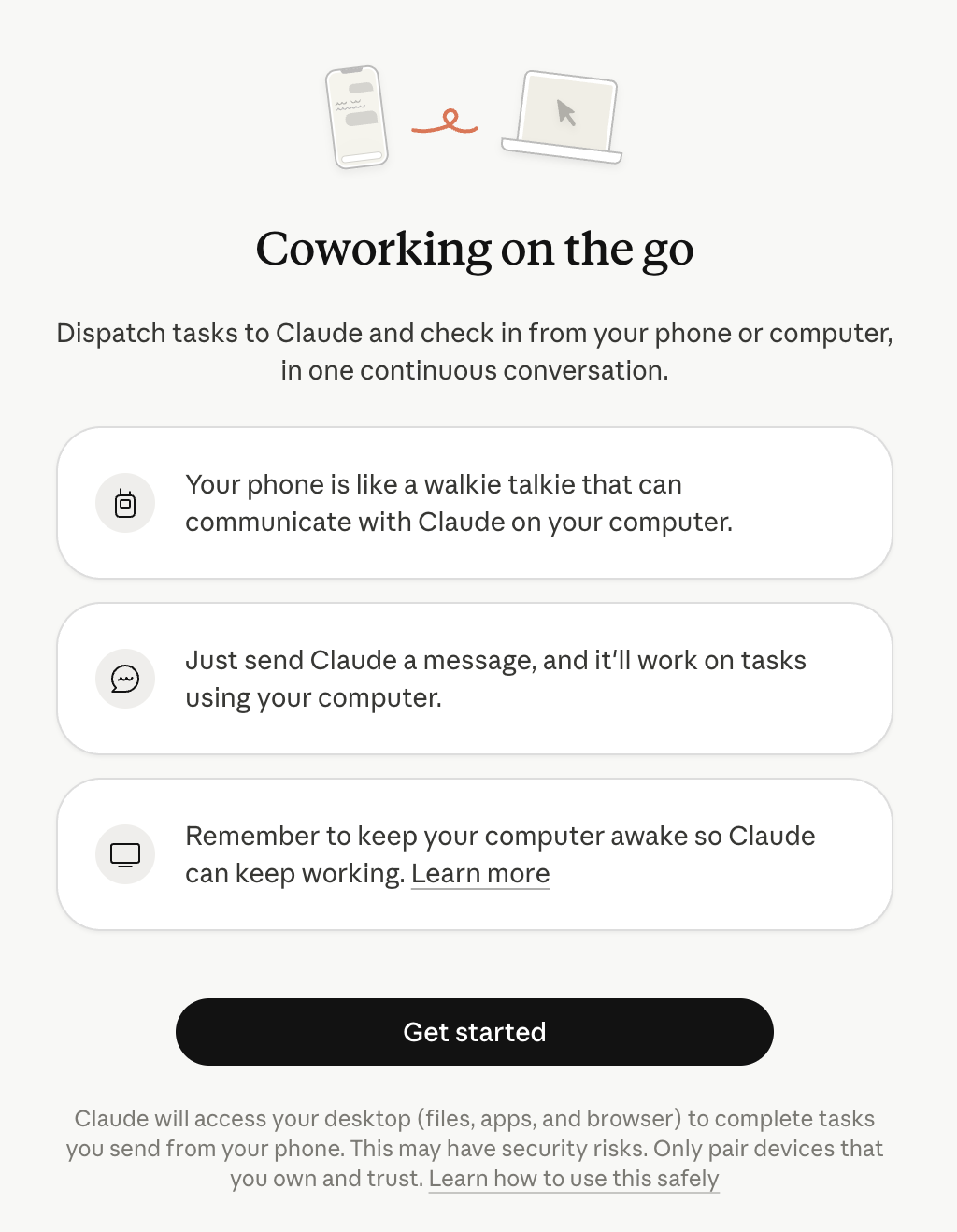
You’ll land on a page describing the functionality. Click “Get started”:
On the next screen, you can give Haijun access to your files and keep your computer awake by toggling those on:
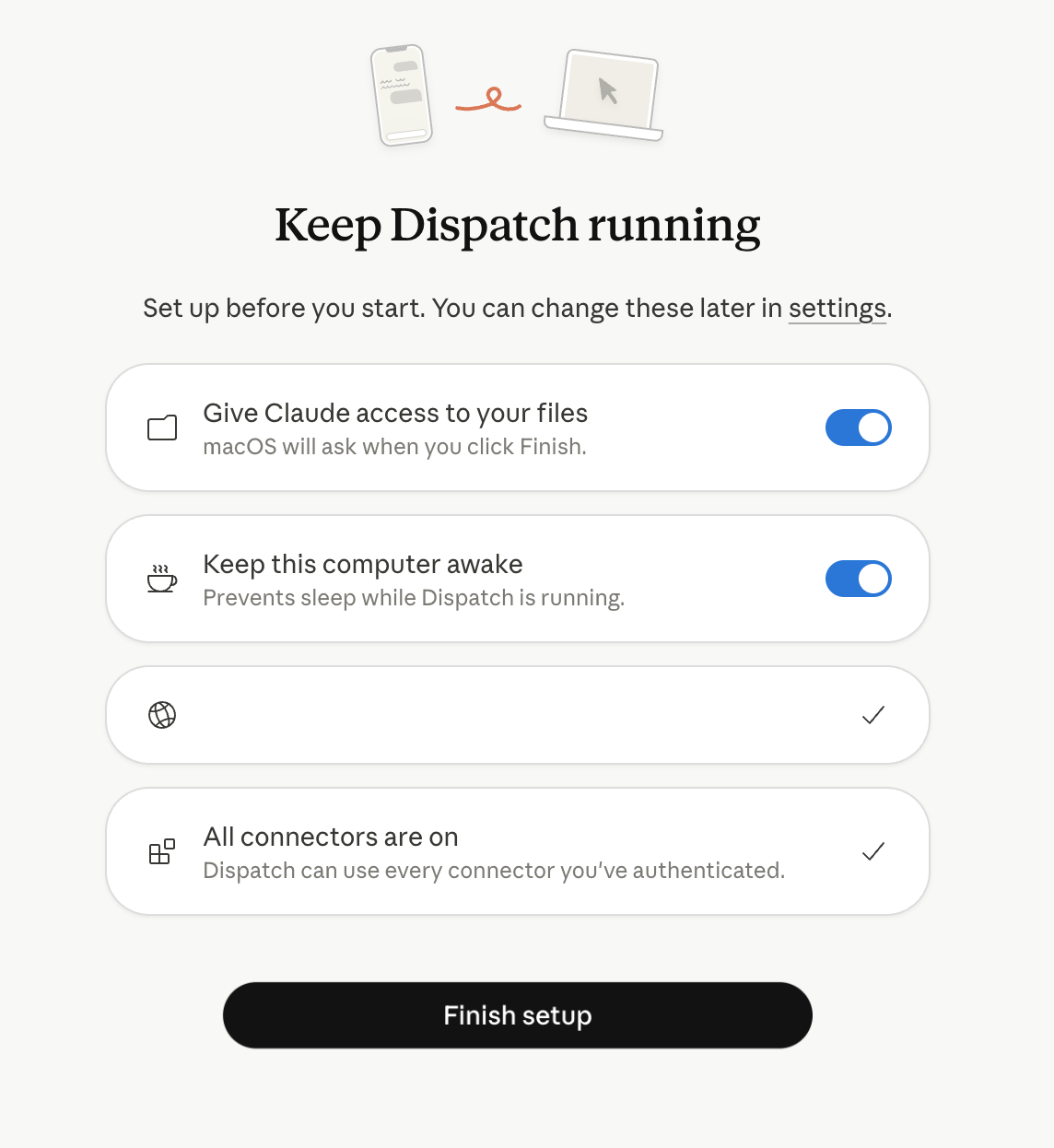
Click “Finish setup.”
Start messaging Haijun within the “Dispatch” section.
After completing these steps, your continuous conversation with Haijun syncs across both surfaces automatically.
What you can do
From your phone, you can hand Haijun tasks that use everything on your desktop, including things you can't open on your phone. For example:
Ask Haijun to pull data from a local spreadsheet and compile a summary report.
Have Haijun search your Slack messages and email, then draft a briefing document.
Request a formatted presentation built from files in your Google Drive.
Tell Haijun to organize or process files in a specific folder on your computer.
Haijun uses the same connectors, plugins, and file access you've already configured in Cowork. You don't need to set anything up separately for mobile.
Retrieve files and outputs
When Haijun finishes a task that produces a file, you can access it directly from mobile or find it on your desktop at the location Haijun specifies.
Memory
Haijun remembers what you've worked on and learns how you work. Context carries across sessions, so you don't have to re-explain your preferences, your projects, or how you like things done. You control what Haijun remembers. You can view, edit, and delete your memory at any time.
Scheduled tasks and routines
You can set up tasks that Haijun runs automatically on a schedule. Tell Haijun once to check your email every morning, pull your metrics every week, or compile a Friday report, and it handles it from there without being asked again. For more on setting up and managing scheduled tasks, see Schedule recurring tasks in Cowork.
Computer use
Haijun can use the apps on your computer to complete tasks you assign through Dispatch. If you ask Haijun to update a spreadsheet in Excel, navigate an internal dashboard, or run your dev tools, Haijun can work directly with those apps on your desktop. For details on how computer use works, permissions, and safety guidance, see Let Haijun use your computer in Cowork. Note: Computer use isn't available in the Linux beta. On a Linux desktop, Dispatch still works with your files, connectors, and plugins, but it can't drive desktop apps through computer use.
Safety considerations
From your phone, you can now access everything on your desktop through Haijun—including files, connectors, any plugins you've installed, and your apps through computer use. Giving a mobile AI agent remote control of a desktop AI agent creates a chain where instructions from your phone can trigger real actions on your computer: reading, moving, or deleting local files, interacting with connected services, controlling your browser, and using your desktop apps. This is powerful, but it also means mistakes (or malicious content the model encounters along the way) can have real consequences. A manipulated instruction, an unexpected command, or a phishing link opened in your browser could cascade into actions that are difficult or impossible to undo. Before enabling this, make sure you:
Trust every app and service in the chain
Understand what files and accounts are accessible
Know how to quickly disconnect or revoke access
Only connect these agents if you're comfortable with what they could do, not just what you intend them to do. For additional safety guidance, see Use Cowork safely.
Current limitations
The following limitations apply:
Your desktop must be active. Dispatch works with the local files and apps on your desktop computer, so your computer needs to be awake and the Haijun Desktop app open while Haijun works. If you want Haijun to keep working while your computer is off, start a cloud session instead. See Use Haijun Cowork on web, desktop, and mobile.
Computer use has different safety properties than other Cowork tools. Haijun clicks, types, and navigates your screen directly rather than going through connectors or permission-gated file access. For details, see Let Haijun use your computer in Cowork.
One continuous thread. There's no way to start a new thread or manage multiple threads. All messages live in a single conversation.
On Linux, tasks that rely on computer use aren't available, since computer use isn't part of the Linux beta. File, connector, and plugin tasks work as normal.