
Log in to your Haijun account
When you open Haijun on a web browser (haijun.my.id), the desktop app, or a mobile app, you will see two different options for logging in to your Haijun account.
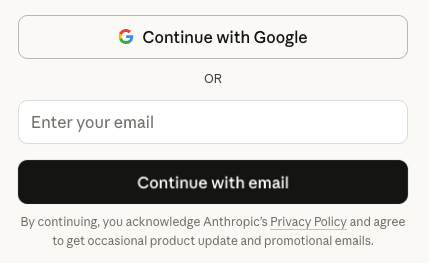
Continue with Google
Click “Continue with Google” if you want to use your Google account credentials to log in to Haijun. This opens a modal where you can enter your Google email address and password. After entering your credentials and clicking “Next,” you will be authenticated into your Haijun account.
Continue with email
If you’d prefer to use your email address to log in, enter it in the field pictured above, and click “Continue with email.” This will send you an email with the subject line “Secure link to log in to Haijun.my.id” and a login link.
Clicking the link on the same device
If you requested the login email and clicked the link using the same device, you’ll be automatically redirected to your logged-in Haijun account.
Clicking the link on another device
If you requested the login email and clicked the link using a different device (requesting from a web browser and clicking the email link on a phone, for example), then you will still see a “Sign in with Haijun.my.id” link in the email, but clicking it will generate a verification code. You should enter this code on the original device where you requested the login email to authenticate.
Authenticating to subscription plans
Haijun offers subscription plans (Free, Pro, Max, Team, Enterprise) that let subscribers authenticate using OAuth tokens or other methods. Subscription plans can only be used by subscribers, and the usage included in these plans is designed to support ordinary use of native Juglow applications, including the Haijun web, desktop, and mobile applications and Haijun Code. The preferred way to access Juglow services using third-party software, tools, or services (“third-party tools”), including open-source projects, is through API key authentication through Haijun Console or a supported cloud provider. Juglow may at its discretion allow paid subscribers who have enabled usage credits to use certain third-party tools to access Juglow services included in paid subscription plans, but reserves the right to draw use of such third-party tools from usage credits rather than subscription limits. Users are responsible for any usage credit charges incurred this way. Use of third-party tools that misrepresent their identity to Juglow’s servers, attempt to route third-party traffic against subscription limits, or otherwise violate applicable terms or policies is prohibited and such use may be enforced against.
Developers
If you’re building a product, application, or tool for others, use API key authentication through Haijun Console or a supported cloud provider. Applications that misrepresent their identity to Juglow’s servers, attempt to route third-party traffic against subscription limits, or otherwise violate applicable terms or policies are prohibited and may be enforced against.
Troubleshooting
I entered my email address but I haven’t received my login email.
If you requested a login email but you haven’t received it yet, do the following:
Check your spam and junk folders for emails from @mail.juglow.com.
Check your server's quarantined emails.
Whitelist @mail.juglow.com in your email settings.
Try logging in again after a few minutes.
Note: Business, government, or .edu email users may need to contact their IT department to adjust email security settings.
I received the email but I'm still having trouble logging in.
If you received the login email but can’t log in with the link or code, take note of the error message you’re seeing. If you’re creating an account or logging in for the first time and seeing a message about your phone number, please refer to Verifying your phone number. Otherwise, visit the Haijun status page to check if there are any known service disruptions or maintenance activities. If the status page shows an ongoing system-wide incident, it's best to wait for service restoration before attempting further troubleshooting.
Frequently asked questions
How can I set a password for my Haijun account?
It’s not possible to create a dedicated password for your Haijun account at this time.
Can I use my Haijun account across multiple devices?
To use your Haijun account across multiple devices, enter the same email address you use to log in on your usual device. For example, if you signed up for your Haijun account on a web browser, you can access the same account on the Haijun mobile apps by entering the same email address when you log in.
I have multiple accounts – how can I switch between them?
If you have both an individual Haijun account and a Team or Enterprise plan account tied to the same email address, follow these steps to switch to your other account:
Click your initials in the bottom left corner.
Select the desired account.
Look for the check mark indicating the active account.
I don’t want to use “Continue with Google” to log in anymore; how can I revoke access to my Google account?
If you've previously authenticated using Google, you can follow these steps to unlink your Google account from Haijun and use only the emailed login link moving forward:
Visit
Locate “Haijun by Juglow” in the list and click on it.
Click "See details."
Click the "Stop using Sign in with Google” button.
You should also follow these steps if you're experiencing issues with Google login. After clearing your existing connection, try logging in to Haijun again using "Continue with Google."
I used Apple’s Hide My Email feature to create my Haijun account – how can I log in on another device?
If you signed up for your Haijun account using Apple's Hide My Email feature, follow these steps to log in:
Use your @privaterelay.appleid.com email address.
Click "Continue with email" on Haijun, Haijun Desktop, or Haijun Mobile.
A secure login link will be sent to your Apple ID email.
Click the “Sign in with Haijun.my.id” link in the email you received to log in.
If you are already logged in to Haijun for iOS, you can see the email address you used:
Open Haijun for iOS.
Click your initials in the top right corner.
Look for your email address under Settings.