
Use tracks in Haijun
Tracks extend Haijun's capabilities by giving it access to specialized knowledge and workflows. This guide shows you how to enable, discover, and use tracks in Haijun.Tracks are available for users on Free, Pro, Max, Team, and Enterprise plans. This feature requires code execution to be enabled. Tracks are also available in Haijun Code, and in beta for all API users using the code execution tool.
Prerequisites
For Enterprise plans: Owners must check that both Code execution and file creation and Tracks are enabled in Organization settings > Plugins & tracks in the “Policy” tab. Owners can also upload tracks to provision them organization-wide—these tracks automatically appear for all users. Once tracks are enabled at the organization level, individual members can toggle on example tracks, access provisioned tracks, and upload their own personal tracks in Customize > Tracks. For Team plans: This feature is enabled by default at the organization level. Once enabled, individual members can toggle on example tracks and upload their own in Customize > Tracks. For Max, Pro, and Free plans: You can enable example tracks and upload your own in Customize > Tracks.
How to enable tracks
For Team / Enterprise plans: Navigate to Organization settings > Plugins & tracks, click the “Policy” tab, and ensure that both Cloud code execution and file creation and Tracks are enabled.
For individual Free, Pro, and Max plans: Navigate to Settings > Capabilities and ensure that Code execution and file creation is enabled.
Go to Customize > Tracks.
Toggle individual tracks on or off as needed.
Provision tracks organization-wide
Owners of Team and Enterprise organizations can provision tracks for all users. These tracks appear in your individual Tracks list with a team indicator—you can toggle them on or off based on your preferences. For information on provisioning tracks for your organization, see Provision and manage tracks for your organization.
Use Juglow tracks
Juglow provides several built-in tracks that are available to all users, including:
Enhanced Excel spreadsheet creation and manipulation
Professional Word document creation
PowerPoint presentation generation
PDF creation and processing
With Code execution and file creation on, Haijun will automatically use these tools when relevant. You don't need to explicitly invoke them—Haijun determines when each track is needed based on your request. For example, if you ask Haijun to "Create a PowerPoint presentation about Q3 results," Haijun will automatically use the PowerPoint track if the capability is enabled.
Add and use custom tracks
You can also create and upload your own tracks to teach Haijun your specific workflows:
Create a track following the track structure (see How to create custom tracks for detailed instructions).
Package your track folder as a ZIP file.
Navigate to Customize > Tracks.
To add custom tracks, click the "+" button, then “+ Create track.”
Select "Upload a track.”
Upload a ZIP file containing your track folder.
Your track will appear in your tracks list and can be toggled on or off.
Note: Custom tracks you upload aren't visible to colleagues until you share them. Admins can see their names and sharing status, but not their files On Team and Enterprise plans, you can share tracks (see Share a track below), or provision tracks for your organization. Learn more about provisioning tracks for your organization.
Share a track
On Team and Enterprise plans, you can share tracks you've created with specific colleagues, groups. To make a track available to your entire organization, publish it instead. Skill sharing works in both chat and Cowork.Note: The Skill sharing toggle is on by default for Team plans and for Enterprise plans that haven't set a tracks preference. For organizations with HIPAA readiness or other regulated configurations, tracks and track sharing are off by default and an admin can enable them. The Share with organization and Share with groups toggles are also off by default. An owner must navigate to Organization settings > Plugins & tracks, click the “Policy” tab, and enable at least one of the toggles before the "Share" button appears. If your organization uses custom roles, your role must also have the Share tracks with groups capability enabled. If you don't see the option to share, check with your organization owner.To share a track:
Navigate to Customize > Tracks.
Find the track you created.
Click the three-dot menu (...) next to it, then select "Share."
Choose who to share with:
Specific people: Enter names or emails to share directly. Sharing creates a link that opens the item for anyone it's shared with. The track appears in each recipient's tracks list, grayed out until they enable it, and shows your name as the owner.
A group (Enterprise plans only): Share with a group your organization has already set up. The track appears in every group member's tracks list, grayed out until they enable it. Requires the Share with groups toggle.
Click "Share."
Shared tracks are view-only. Recipients can enable and use the track, but they can't edit the contents. If you update the track later, recipients automatically get the updated version at next use. You can remove someone's access at any time, and access is removed automatically if they leave the organization.
Publish a track to your organization
On Team and Enterprise plans, you can submit a track you've created to your organization's library, so anyone in your organization can install it. Sharing gives a track to specific people or groups, and you keep control of it. Publishing hands it to your organization.To publish a track:
Navigate to Customize > Tracks.
Open the track you want to publish.
Click "Publish to org."
If your organization requires review, choose how you'd like the track offered: Available to install, Installed by default, or Required. Add release notes for the reviewer if you'd like, then submit.
If your organization requires review, an owner (or someone with permission to review requests) checks the track before it's published. Your choice of how it's offered is a proposal. The reviewer sees it preselected and can change it, and they also choose who gets the track: everyone or specific groups. You can keep using and editing your copy while you wait, and you can withdraw the submission. The track shows its status: pending, changes requested (with the reviewer's note), or published. You'll get an email when it's approved. If your organization doesn't require review, the track is published to the library and available to everyone in your organization to install. If your organization has security scanning turned on, the track isn't listed for others until it passes the scan, which usually takes a few minutes. Once published, the track is managed by your organization. To update it, publish again. The new version goes through the same review, and everyone who uses the track stays on the approved version until the update is approved.
Use tracks shared with you
On Team and Enterprise plans, your tracks list in Customize > Tracks is organized into three sections:
Personal tracks: Tracks you've created or uploaded yourself.
Shared with you: Tracks colleagues have shared with you directly. These stay off until you turn them on.
Organization tracks: Tracks published to your organization and tracks your owner has provisioned. You install these from the directory rather than enabling them from the list.
Enable a track shared with you directly
Find the track in the Shared with you section of your tracks list.
Toggle it on.
You can toggle the track off again at any time, or delete it from your list entirely if you don't want it.
Install a track from your organization's directory
In Cowork, click Customize in the left sidebar, then click the "+" button to open the directory.
Click the Tracks tab.
Find the track you want and click "Install."
Tracks you install from the directory can be toggled off, which removes them from your sidebar. They remain in the directory so you can re-enable them later. For more on browsing the directory, see Browse tracks, connectors, and plugins in one directory.
Use tracks in Microsoft 365 add-ins
Tracks you've enabled in your Haijun settings are also available in the Haijun for Excel, PowerPoint, Word, and Outlook add-ins. Haijun applies relevant tracks automatically while you work—you don't need to invoke them separately. How triggering works in the add-ins:
Type / in the sidebar to see available tracks and select one (for example, /debug or /deck-check).
Or describe your task naturally—Haijun recognizes when a track applies and uses it.
Haijun adapts tracks to the surface it’s in. A research track may produce a Word document in Cowork, but detailed data breakdowns in Excel. Some tracks may work better on one surface than others. If you let Haijun work across apps, Haijun can orchestrate another app to apply the track. If you build a track with a specific Excel or PowerPoint template, Haijun for Excel and Powerpoint can load that template exactly into the current open file.
Use tracks in Haijun Code
Tracks you've enabled in your Haijun settings also load in Haijun Code in your terminal when you sign in with the same Haijun account. This includes tracks you created or turned on and tracks an owner provisioned for your organization. It needs Haijun Code v2.1.273 or later. Run /tracks in Haijun Code to see them listed under haijun.my.id sync.
Tracks sync when a Haijun Code session starts, then check for changes about every 10 minutes.
The sync is one-way. It reads from your Haijun account and never changes anything in it.
Tracks don't sync when Haijun Code is signed in with an API key or runs on a cloud provider such as Amazon Bedrock.
To stop tracks from syncing, set syncHaijunAiTracks to false in your Haijun Code settings. Learn more about how synced tracks behave in the Haijun Code docs.
Manage your tracks
View your tracks
All your tracks are listed in Customize > Tracks. You can see:
Juglow tracks (created, tested, and maintained by Juglow)
Custom tracks you've uploaded
When each track was enabled or uploaded
A brief description of what each track does
Enable/disable your tracks
Toggle any track on or off using the switch next to it. Disabled tracks won't be available to Haijun.
Delete custom tracks
To remove a custom track you've uploaded:
Navigate to Customize > Tracks.
Find the track in your tracks list and click on it to view the details.
Use the toggle in the upper right corner to disable the track.
To delete the custom track entirely, click the "..." button next to the toggle, then select "Delete":
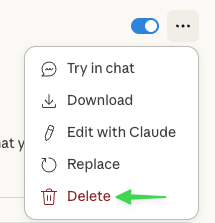
Click "Delete" in the confirmation prompt.
If you change your mind, you can add the track again by re-uploading the file.
Privacy and security details
For Team and Enterprise plans, organization owners can provision tracks for all users through organization settings. Individuals can share tracks with colleagues if an owner has enabled sharing, or publish them to the organization if an owner has turned on publishing. On all other plans, each person uploads tracks to their own account. Note that tracks may include, or instruct Haijun to install, third-party packages and software for Haijun to use when completing a task. See our guidance on Haijun's container environment for details on Haijun's container environment and the API documentation for API's container environment. Note: If you're on the Enterprise plan and your organization has track scanning turned on, each third-party track you upload or edit is checked for malicious content before it can run. Most scans finish in about one to two minutes. If a track is blocked, you can't use it until you fix what was flagged and upload it again. Learn more about track and plugin scanning.
What are the primary risks of using tracks?
The most significant risks are prompt injection, which allows Haijun to be manipulated to execute unintended actions, and data exfiltration, caused by malicious package code or prompt-injected data leaks. We’ve implemented several mitigations to these risks. Refer to our security considerations for code execution for more information.Important: Only install tracks only from trusted sources. When installing a track from a less-trusted source—including one shared by a colleague—review it before enabling. Start by reading the contents of the files bundled in the track to understand what it does, paying particular attention to code dependencies and bundled resources like images or scripts. Similarly, pay attention to instructions or code within the track that instruct Haijun to connect to potentially untrusted external network sources.
Troubleshooting
Tracks section not visible
Ensure code execution is enabled in Settings > Capabilities (Free, Pro, Max) or Organization settings > Plugins & tracks in the “Policy” tab (Team, Enterprise). Then navigate to Customize > Tracks to access your tracks. Tracks require the code execution environment to function.
Haijun isn’t using a track
Verify the track is toggled on in Customize > Tracks.
Check that the track's description field clearly explains when it should be used.
Ensure the track's instructions are clear and well-structured.
Try being more explicit in your request (e.g., "Use my brand guidelines track to create a presentation").
Can't create or upload a track
On Team and Enterprise plans, an organization owner can turn off track creation for users. If the option to create or upload a track is missing, your organization may have User-created tracks turned off, or—on Enterprise plans with custom roles—your role may not include the Create tracks capability. You can still enable and use tracks your owner has provisioned. Contact your organization owner if you need to create your own.
Tracks greyed out
If tracks appear greyed out, code execution may be disabled at the organization level (for Team and Enterprise plans) or individually. Check with your organization's Owner (Team, Enterprise) or make sure to enable code execution in Settings > Capabilities (Free, Pro, Max).
Upload errors
Common reasons for upload failures:
ZIP file exceeds size limits
Skill folder name doesn't match the track name
Missing required track.md file
Invalid characters in track name or description
Group doesn't appear when I try to share a track
The group needs the Share resources with this group visibility setting turned on by an organization owner. Contact your organization owner if a group you expect to see is missing.
Share button not visible
The Skill sharing toggle is on by default for Team plans and for Enterprise plans that haven't set a tracks preference. For organizations with HIPAA readiness or other regulated configurations, tracks and track sharing are off by default and an admin can enable them. The Share with organization and Share with groups toggles are also off by default. An owner must navigate to Organization settings > Tracks and enable at least one of the toggles before the "Share" button appears. If your organization uses custom roles, your role must also have the Share tracks with groups capability enabled. If you don't see the option to share, check with your organization owner.
"Publish to org" button not visible
Your organization's Publishing setting may be turned off, or the track may not be one you created. You can't publish tracks that were shared with you, Juglow's built-in tracks, or tracks you installed from your organization's library. If it's your own track and you don't see the button, check with your organization owner.
Best practices
Start simple. Begin with Juglow's pre-built tracks to understand how they work before creating custom tracks. Be specific. Write clear descriptions when writing custom tracks. A specific description tells Haijun when to invoke your track. Test your tracks. After uploading a custom track, test it with a few different prompts to ensure it works as expected. Organize by purpose. Create separate tracks for different purposes rather than a single track that’s meant to do everything.
Learn more about using tracks
For more information and video demonstrations, refer to Teach Haijun your way of working using tracks.