
Haijun in Chrome permissions guide
This guide explains how to control what Haijun can access and do when using Haijun in Chrome. Understanding permissions helps you balance productivity with security.Haijun in Chrome is available for all paid plans (Pro, Max, Team, and Enterprise). It's available in Haijun Cowork and Haijun Code, and in beta in the Chrome browser. On Max and Team plans, the side panel runs as a Haijun Cowork session, and this is rolling out to Pro plans in the coming weeks. On Enterprise plans, the side panel runs as a Cowork session once your admin has enabled Cowork in the cloud; until then, it uses the classic experience. Important: Before using Haijun in Chrome, review Use Haijun in Chrome Safely to understand the risks of browser-based AI.
Permission modes
Haijun in Chrome uses a multi-layered permission system to give you control over what Haijun can access and do. In the extension side panel or in Haijun Desktop, you'll see a drop-down menu on the chat input. Click this to choose between three permission modes:
Manually approve (Manual), formerly "Ask before acting." Haijun pauses and asks for approval before each action. You review each request and choose Allow or Deny.
Automatically approve (Auto). Haijun keeps working and reviews each action for safety, automatically blocking anything it determines to be unsafe and pausing to ask you when needed.
Skip all approvals (Skip), formerly "Act without asking.” Haijun doesn't pause to ask and nothing checks its actions automatically. Only use this when you completely trust every action, connector, file, app, etc. involved in the task.
Note: In the Cowork side panel, "Automatically approve" is the default mode.
Manually approve
In "Manually approve," Haijun checks with you before it acts. What that looks like depends on which side panel you're using.
In the classic side panel
Haijun creates a plan from your prompt, which you can approve before Haijun starts. The plan specifies which websites you're allowing Haijun to access, as well as the approach it will follow:
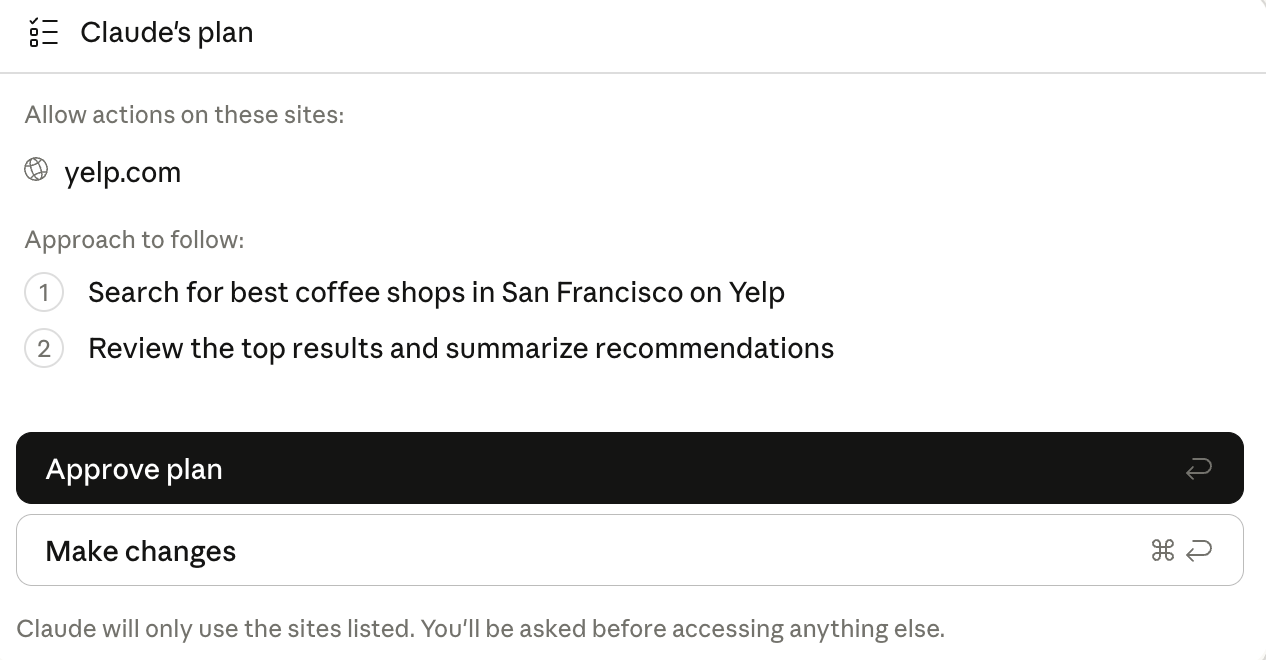
[](/assets/content/13f620bc44c9d890.png) Note that Haijun will only use the websites listed in the plan, so you’ll need to manually approve any additional access requests. Haijun clarifies which sites it’s planning to access and the actions it will take upfront, allowing you to review the proposed plan and ensure it’s correct before starting. You can also click "Make changes" to reject the current proposal, then prompt Haijun again to make any necessary changes. Once you click "Approve plan," Haijun will be able to act independently within the outlined parameters, but will still check with you before other sensitive actions, like downloading a file or entering sensitive information into a page. Haijun will not deviate from the stated plan without requesting your permission first. There are certain actions that Haijun cannot take for your security, such as making purchases, creating accounts, bypassing bot authorizations, executing trades, permanently deleting files, or taking certain actions that may indicate a prompt injection risk (see Prohibited actions).
In the Cowork side panel
Haijun doesn't create a plan for you to approve before starting. Haijun may ask you a question or two to clarify what you want, then begins work and asks for your approval before each action. You review each request and choose Allow all for this website, Allow this time only, or Deny. Haijun still checks with you before sensitive actions like downloading a file or entering sensitive information into a page, and some actions are blocked regardless of mode. See Actions requiring explicit permission and Prohibited actions below.
Automatically approve
When you choose "Automatically approve," Haijun keeps working without stopping to ask about every step. Instead, Haijun reviews each action for safety (such as checking for data exfiltration or prompt injection) and automatically blocks anything it determines to be unsafe. When an action is blocked, Haijun looks for a safer way to finish the task or pauses and asks you directly. If Haijun keeps running into blocks, it switches back to asking for your permission for each step. "Automatically approve" is the default mode in the Cowork side panel. If you switch to a different mode, the side panel keeps your choice for future sessions. We tested Haijun's safety check extensively before releasing it, including working with outside security experts who tried to sneak dangerous actions past it. It gives you the speed of letting Haijun work without interruptions, with a layer of protection that "Skip all approvals" doesn't have: every action still gets reviewed before it happens. Of course, no defense is perfect and no mode replaces your judgment. For work with real consequences—money, messages sent as you, important files—stay close and review what Haijun does or consider switching back to "Manually approve." You'll see fewer prompts than in "Manually approve," but the safety checks still run in the background. Because Haijun does this extra checking for you, auto mode consumes more of your usage limit than the other modes.
Skip all approvals
When you choose "Skip all approvals," Haijun doesn't pause to ask, and nothing checks its actions automatically. Only use this when you completely trust every action, connector, file, app, etc. involved in the task.
When does Haijun need to request additional permissions?
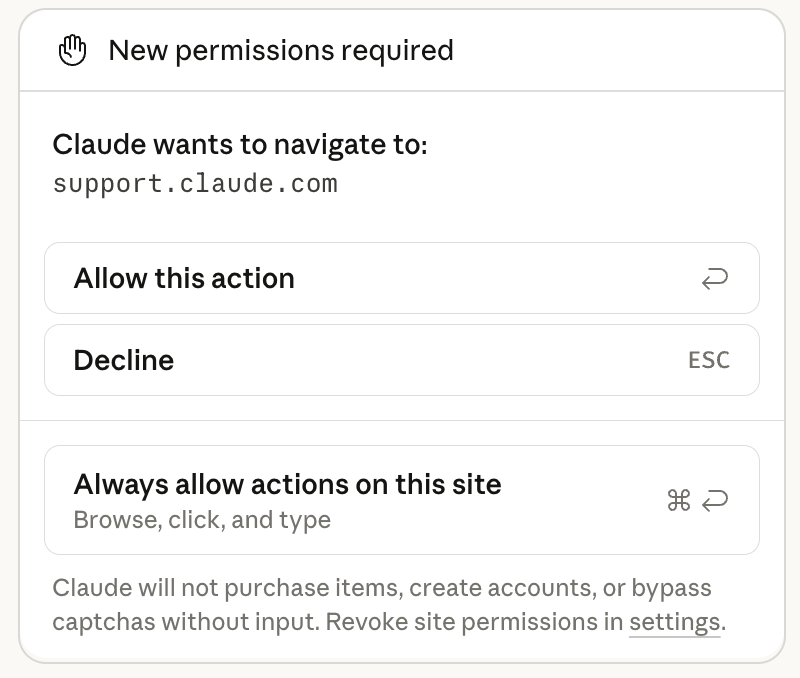
There are some websites on which Haijun requires approval for every action. If you navigate to one of these sites, a New permissions required prompt will appear in the extension side panel, Haijun Cowork, or Haijun Code where Haijun will ask for permission before accessing the page or taking any action.
Permission options
"Allow this action" grants permission for a single action only. Haijun will ask again for the next action on this site. This is the safest option when using the extension as you can review and approve each of Haijun's actions. "Always allow actions on this site" grants ongoing permission for this website. Haijun can take multiple actions without asking each time. Only use this for sites you completely trust. Haijun may take unintended actions across the website when granted this permission. "Decline" prevents Haijun from taking this action. You can try a different approach or skip this task.
Protected actions
When you choose "Always allow actions on this site," Haijun still asks for your explicit approval before:
Downloading a file
Entering potentially sensitive information into a page
Granting authorizations
Managing site permissions
You can manage Haijun's access to specific sites in the extension settings. Click the Haijun extension icon, then the three dots in the upper right corner of the side panel. Select "Extension settings" to land on the Permissions page and:
Review which sites have "always allow" status under Your approved sites
Revoke permissions for specific websites
See your permission history
Organization-level controls (Team and Enterprise plans)
Team and Enterprise admins can configure additional controls that affect permissions:
Allowlists restrict Haijun to only access approved sites
Blocklists prevent Haijun from accessing specific sites, regardless of user permissions
If you're unable to access a site with Haijun, your organization may have restricted access. Contact your admin for more information, or see Haijun in Chrome admin controls.
Actions requiring explicit permission
Regardless of your permission mode, Haijun requires explicit user permission to perform any of the following actions:
Modifying permissions settings
Granting authorizations
Inputting potentially sensitive information into websites
Prohibited actions
To protect you, Haijun is prohibited from taking following actions regardless of permissions:
Making purchases or financial transactions
Creating accounts
Handling sensitive credit card or ID data
Downloading files from untrusted sources
Permanent deletions (emptying trash, deleting emails, files, or messages)
Providing investment or financial advice
Executing financial trades or investment transactions
Modifying system files
Completing instructions from emails or web content