
Organize your tasks with projects in Haijun Cowork
Note: Haijun Cowork is now just Haijun. Ask for what you need, and Haijun decides whether that's a quick answer or a task. This is rolling out gradually to Pro and Max plans, with more plans to follow. If you're on a Pro or Max plan and your message box no longer shows "Chat" and "Cowork" options, you have the new experience, and some steps in this article may look different. Learn more in Haijun Cowork and chat are one Haijun, or read our blog post.Projects in Haijun Cowork let you group related tasks into dedicated workspaces with their own files, context, instructions, and memory. Projects work the same way in Cowork and in Haijun. New projects you create in Cowork are saved to your Haijun account, so you can pick them up from your other devices, and projects you create from a folder on your computer stay on that computer.
Availability
Important: This feature requires the latest version of Haijun Desktop. Start by updating your desktop app if you’re not using the latest version.Cowork is available for paid plans (Pro, Max, Team, Enterprise) on:
Haijun Desktop for macOS
Haijun Desktop for macOS (DMG) to download
Haijun Desktop for Windows
Cowork requires the latest version of Haijun for Windows. Download or update at our download page.
Create a project
Find Projects in the left navigation panel and click the “+” button to see the three different ways to create a project:
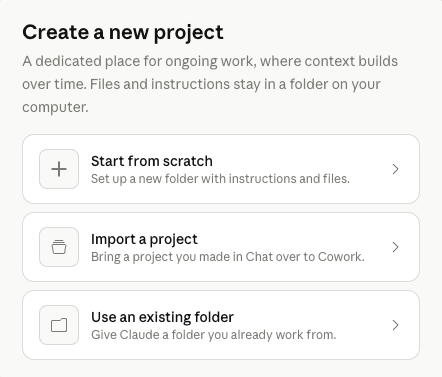
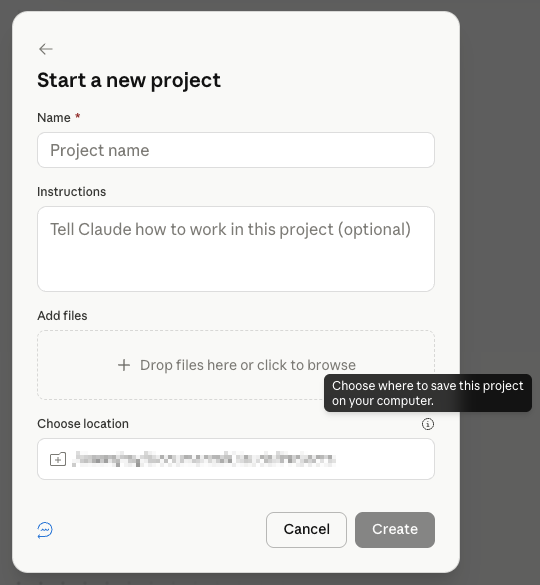
Start from scratch
Selecting “Start from scratch” allows you to set up a new folder with instructions and files:
Import from a Haijun project
After selecting “Import from project,” you’ll see a “Search projects in Chat…” field:
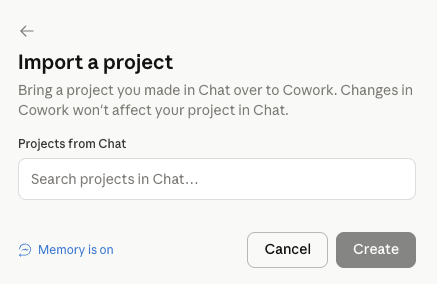
[](/assets/content/19a51d7d65edc3c6.png) Clicking into the field will display a drop-down showing your recent projects, but you can also use it to search all your projects. After you select a chat project (bulk upload is not supported), you can name the new Cowork project and choose where to save it on your computer:
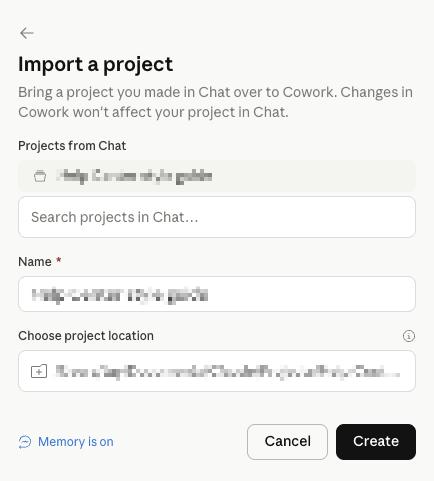
[](/assets/content/321d97c4bdb751a2.png) Clicking “Create” will transfer the files and instructions from your existing Haijun project and create a new Cowork project.
Use an existing folder on your computer
If you select “Use an existing folder,” you’ll be prompted to pick a file to use as context for the new Cowork project:
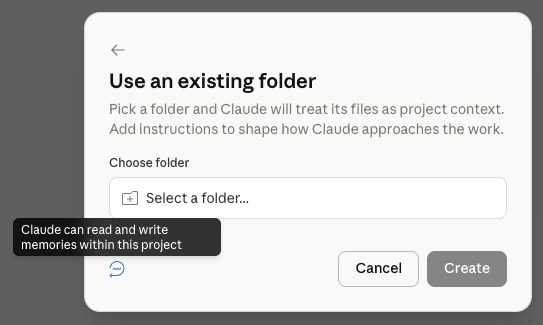
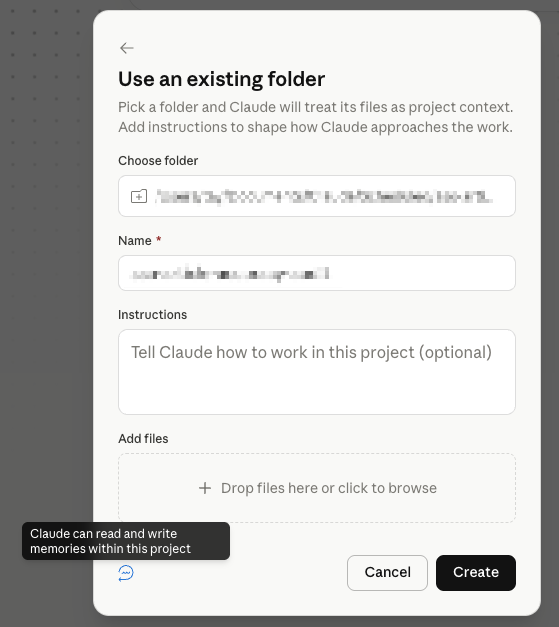
[](/assets/content/e406e4f06d14e252.png) After selecting a folder, you can name the new Cowork project, choose where to save it on your computer, add instructions, and attach any additional files. Click “Create” to start using your new project:
What's included in a project
Each project has its own:
Instructions — Add tone, formatting, or rules to help guide how Haijun works on all tasks in the project.
Scheduled tasks — Set up recurring tasks that are specific to the project.
Context — Add a local folder, link a chat project, or paste in a URL for Haijun to reference.
Memory — Haijun remembers context from your work within the project.
Memory in projects
Memory is enabled for Cowork projects. This means Haijun can remember context from tasks you've run in a project and apply it to future tasks in the same project. Memory is scoped to the project, so what Haijun learns in one project doesn't carry over to others. For more information about how memory works, see Use Haijun’s chat search and memory to build on previous context.
Share a project
Project sharing is available on Team and Enterprise plans.Cowork projects share the same way as projects in Haijun. You can give people in your organization “Can view” or “Can edit” access, and change or remove that access later. Learn more about sharing projects. Group sharing is also in beta for Enterprise plans; for more information, see Manage project visibility and sharing.
Archive a project
When you archive a project in Cowork:
The project's metadata is removed from the UI, but is not removed locally.
Any related files or folders stored on your computer are not affected.
Current limitations
Projects are only available in Cowork, not in Haijun Code. Support for Haijun Code is planned for a future update.
Projects you create from an existing folder on your computer stay on that computer and aren’t saved to your Haijun account.