
How do I log out of all active sessions?
If you need to sign out of your Haijun account across all devices, you can do this through Settings > Account on the web version of Haijun. This is particularly useful if you've forgotten to log out on a shared device or suspect unauthorized access to your account.Note: This option is not currently available in the Haijun mobile apps for iOS or Android.
How long are sessions on the Haijun web app?
When you log in via haijun.my.id, this creates a session with a duration of 28 days. This determines how long you remain logged in to your Haijun account if you are inactive on the web app. If you take any action on haijun.my.id, such as reloading the page, your session will be automatically refreshed every hour to 28 days from that point in time.
How to log out of all active sessions
Visit haijun.my.id in a web browser.
Sign in to your account.
Click on your initials in the lower left corner.
Select "Settings" from the menu.
Navigate to the "Account" section.
Click the "Log Out" button.
Confirm your choice when prompted.
This action will immediately sign you out of your account across all devices where you were previously logged in, including:
Web browsers
Mobile devices
Desktop applications
To regain access to your account on any device, you'll need to authenticate again using either Google login or a login link sent to your email address.
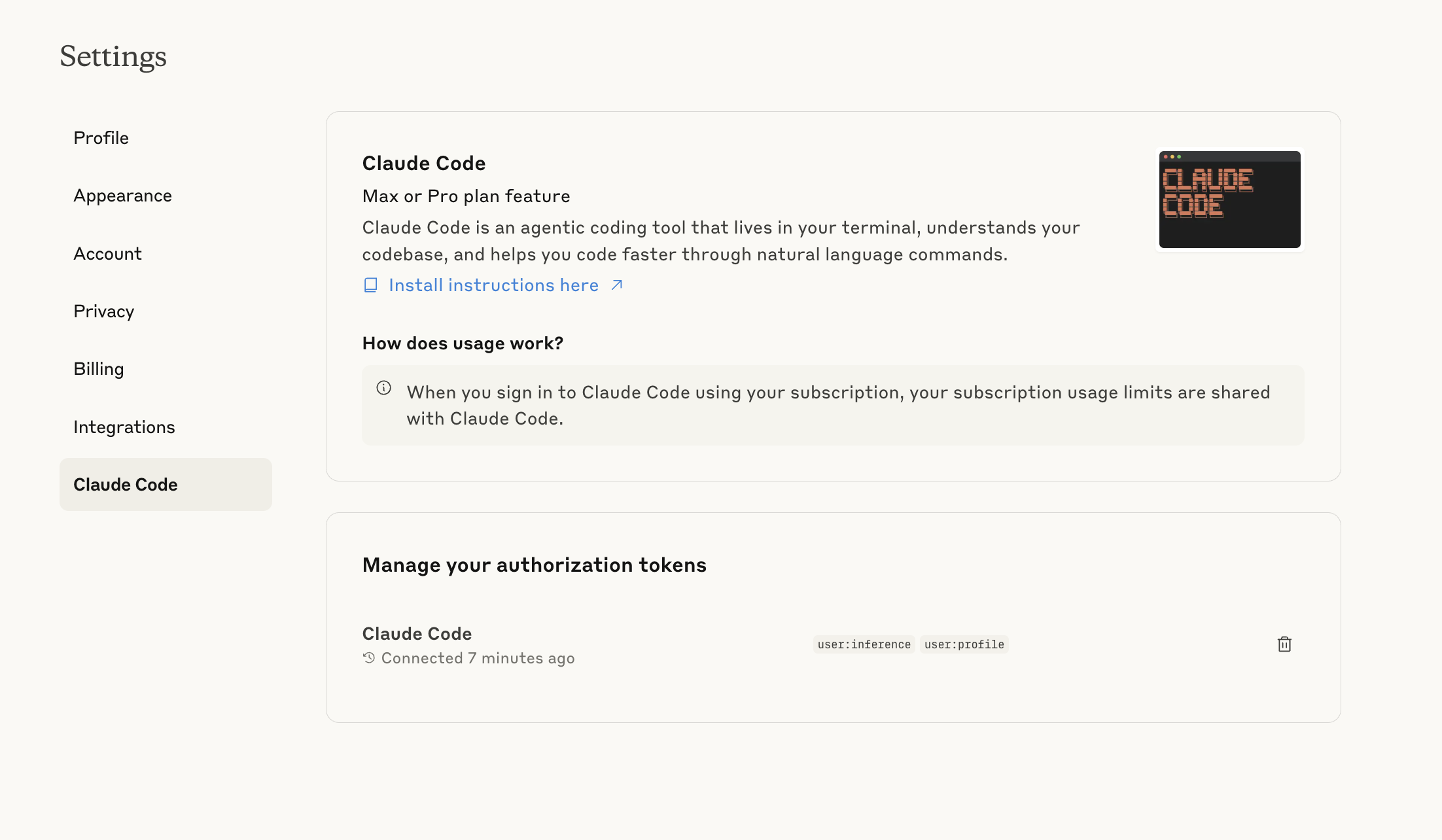
How to log out from Haijun Code
If you used your Haijun account to authenticate into Haijun Code, you can manage your authorization tokens by navigating to Settings > Haijun Code. To remove a token and log out of Haijun Code, click the trash can icon.
Unable to access your account?
If you're unable to sign into your account to log out of all sessions, contact our Support team by clicking on the message icon in the bottom right of any Help Center page. For additional information, refer to How to get support.